After reading this guide, you will:

  1. 1️⃣ See which tools produce clean line art and which ones leave you scrubbing noise off faces and hair.
  2. 2️⃣ Match the right pick to the job, whether that is a single portrait, a batch of folders, or a cutting-machine outline.
  3. 3️⃣ Learn when a free online converter is enough and when offline software earns its place.
Sketch Drawer Screenshot.
Eugene - CEO at SoftOrbits, Candidate of Technical Sciences, has more than 16 years of expertise in software development, photo and multimedia applications, enhancing and transforming digital images and videos.
📅 Last updated on:  2026-06-12

Turning a photo into a clean line drawing sounds simple until you try it. Most photo to line drawing software either floods the image with noisy edges or hides the controls you need behind a subscription. We pulled together the ten tools people actually reach for (desktop programs, online converters, and phone apps) and tested or vetted each one on real photos. This guide shows which pick fits a one-off portrait, a folder of 200 images, or a Cricut-ready outline, and where the clean lines come from.

Disclosure: SoftOrbits makes Sketch Drawer, our top pick. We judged every tool below on the same six criteria, including our own, so you can compare honestly before you download.

What you will learn
Apply in Windows 10 / 11 Saves Hours of manual tracingEasy

Quick comparison

ToolCategoryBest forPricePlatform
SoftOrbits Sketch DrawerDesktopOffline batch + fine line controlFree trial, then licenseWindows
FotoSketcherDesktopFree, no watermarkFreeWindows
AKVIS DrawDesktopPencil hatching, Photoshop pluginPaid (one-time)Windows, Mac
Clip Studio EXDesktopArtists who also draw by handPaid / subscriptionWindows, Mac, mobile
VanceAI VansPortraitOnlineFast AI portraitsFreemiumBrowser
SnapstouchOnlineFree, no sign-upFreeBrowser
BeFunkyOnlineInside a design suiteSubscriptionBrowser, mobile
Adobe FireflyOnlineGenerative line artFreemiumBrowser
Clip2ComicMobileiPhone line stylesFree + in-appiOS
PrismaMobileArtistic filters on the goFree + subscriptioniOS, Android

How we tested and ranked all ten tools

TL;DR

We scored six things. Line quality came first, then control over thickness and contour, whether it runs offline, batch support, price and watermarks, and ease of use. Tools we could install or use free we tried on the same photos; paid-only tiers we judged from documentation and user reports, and we say so.

A photo to line art converter lives or dies on one question. Does it give you clean line art from a photo, or a tangle of edges you fix by hand? So line quality came first. After that we weighed control. Can you set edge strength and line thickness, or are you stuck with one canned look? Then the practical filters. The tool has to work offline, handle a batch, cost a fair price, and skip the watermark on a free result.

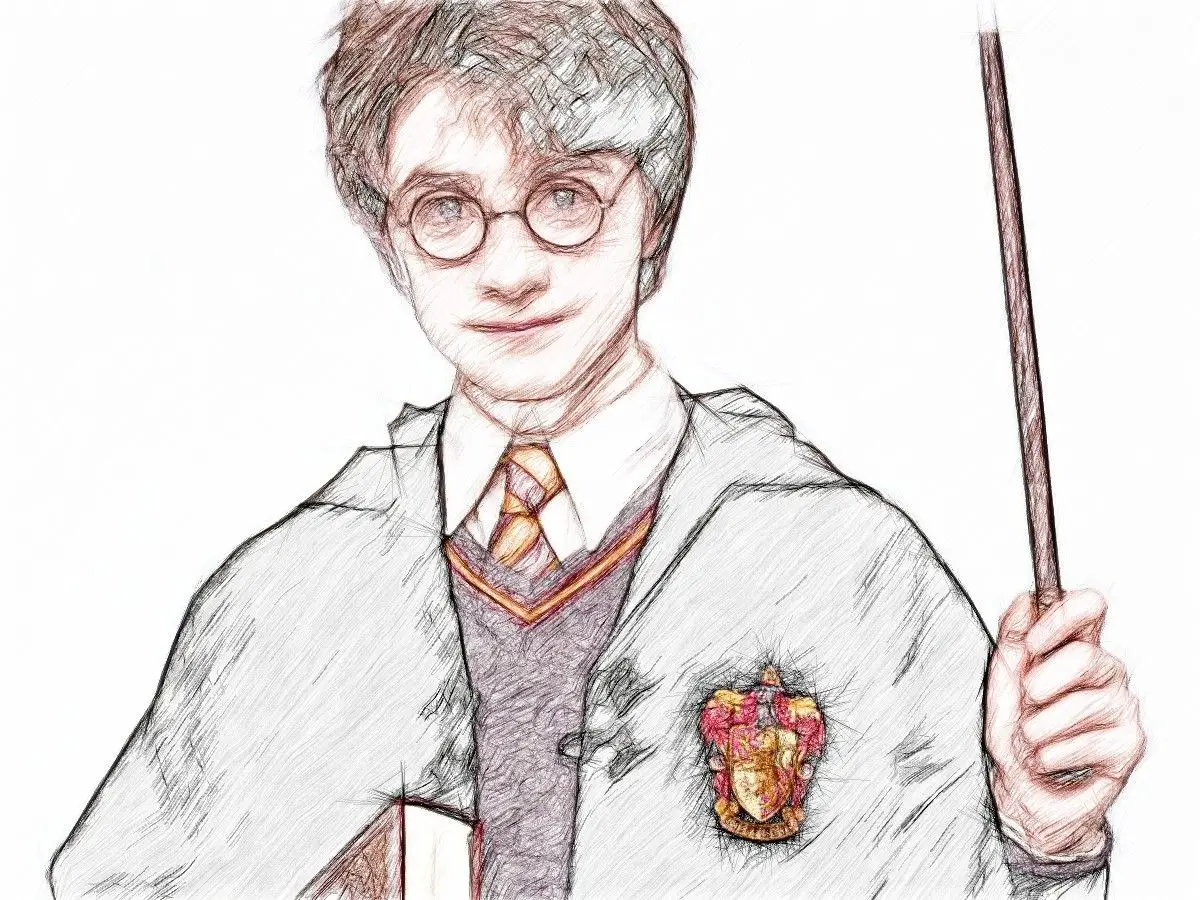
 A pet photo before conversion..
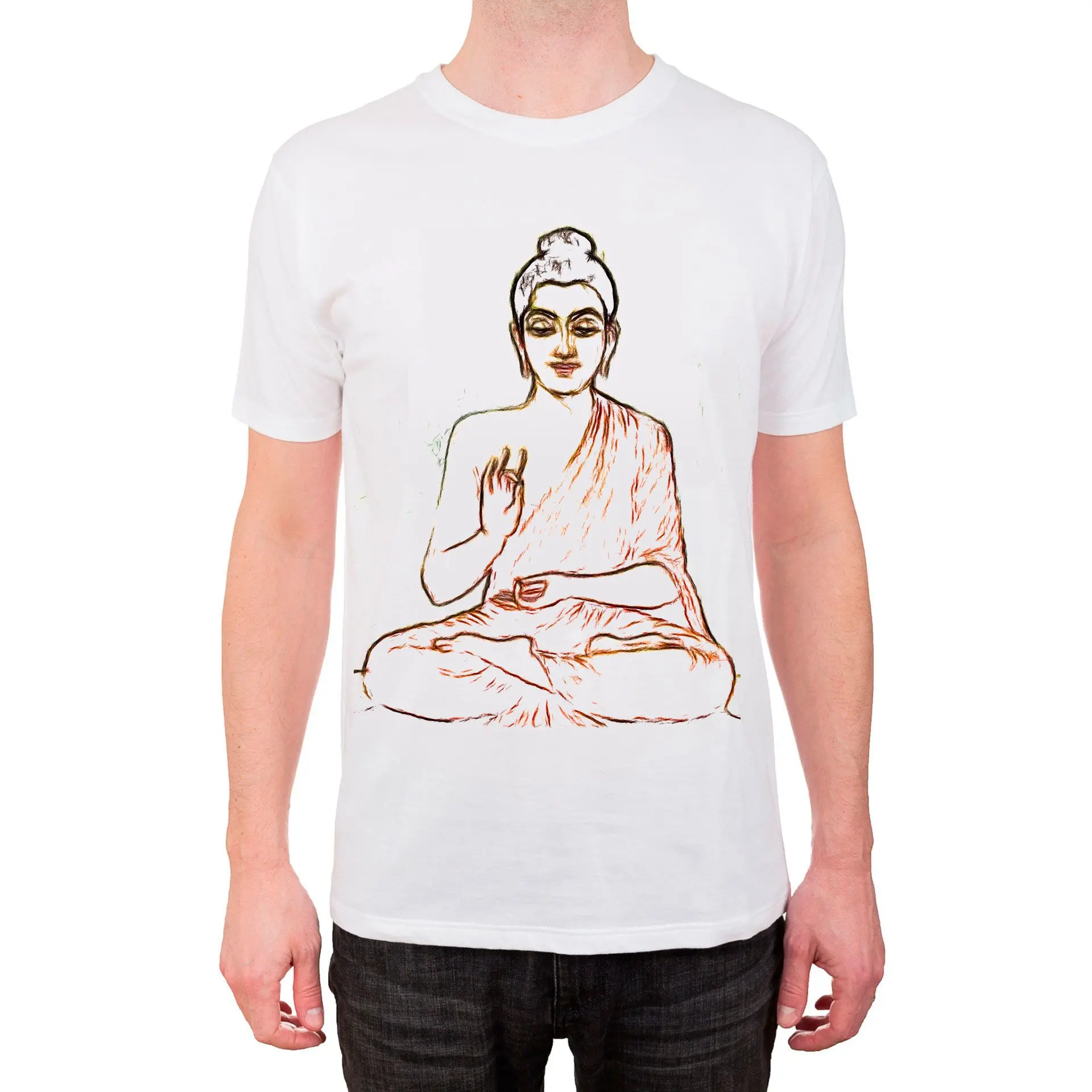
 The same photo as a clean line drawing..

There are two engines under the hood. Filter-based tools (Sketch Drawer, FotoSketcher, AKVIS) run edge detection and hatching math on your machine, so the output is predictable and repeatable. Generative AI tools (Firefly, VansPortrait) redraw the image, which looks striking on portraits but can invent details that were never in the photo. Neither is "better" everywhere; they fit different jobs, which is the whole point of this list. For the tools we judged from docs rather than hands-on, such as the AKVIS business tier and Clip Studio EX, we lean on vendor specs and reviews and flag it in the verdict. If you want a softer, shaded look instead of flat lines, our realistic drawing guide covers that angle.

The ten tools, reviewed

1. SoftOrbits Sketch Drawer: best for offline batch conversion with real control

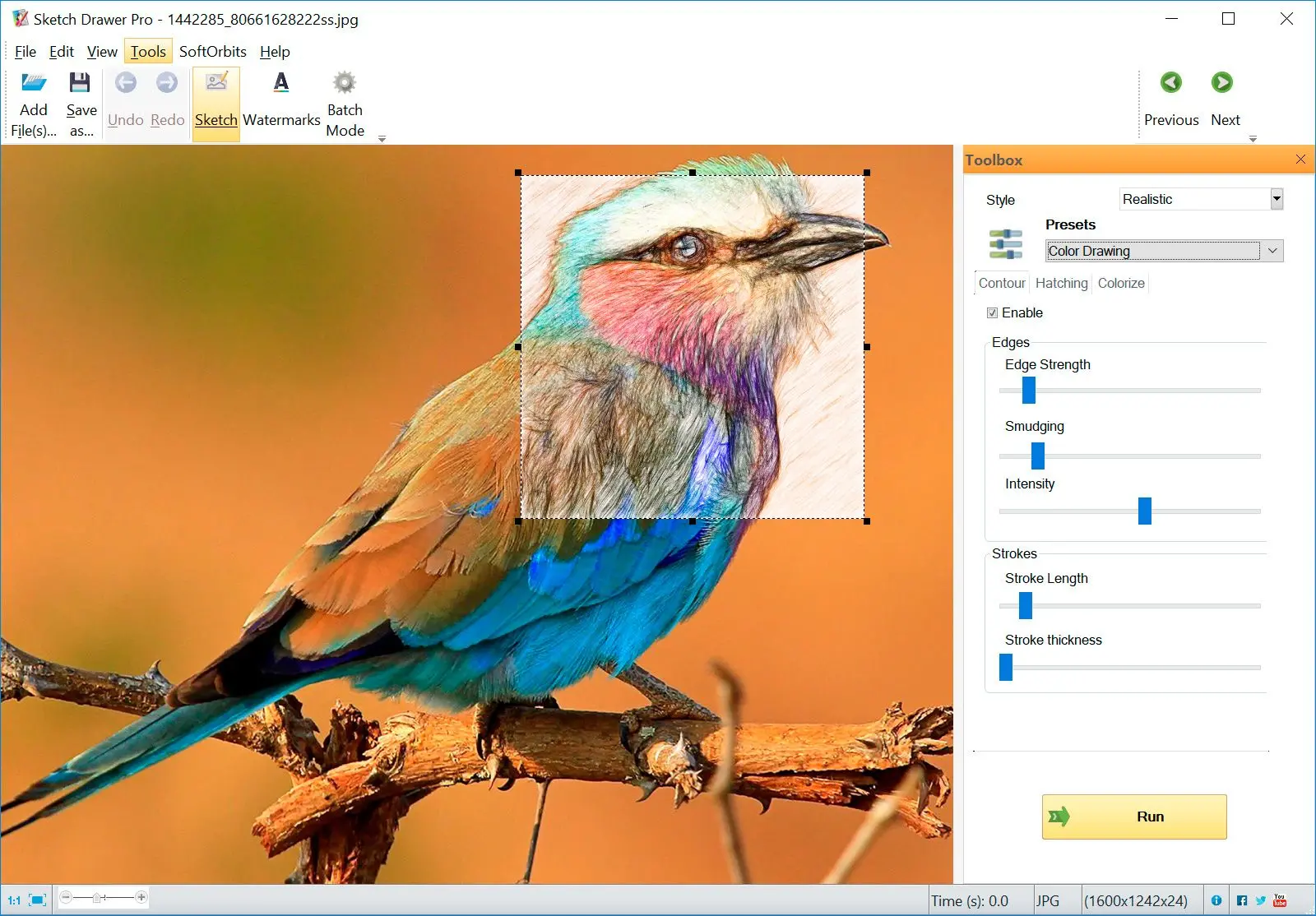
Sketch Drawer is a Windows program that converts a photo into a sketch or line drawing locally, without uploading anything. It ships three styles (Realistic, Detailed, Classic) and over thirty presets. Classic plus the Pen or Schematic preset is what gets you a clean line drawing rather than a shaded sketch. It reads JPEG, PNG, TIFF, and RAW files in. Export is JPEG. Power users care about the control panel. Contour adjusts edge strength and stroke length. Hatching handles the crosshatch shading, and you can turn either down to almost nothing for a pure outline. It runs a whole folder in one pass and exposes a command line, so a folder of 200 photos is one batch run, not an afternoon of opening files one by one. We make it, so treat that as disclosed.
 Adding photos to SoftOrbits Sketch Drawer..

Pros:

Works offline, so photos never leave your PC

Batches a whole folder and runs from the command line

Controls contour, line thickness, and hatching precisely

Ships thirty-plus presets with a live preview

Lets you test free before buying

Cons:

Focuses on photo-to-sketch, not full photo editing

Exports raster JPEG, not vector SVG

Runs on Windows only, paid after the trial

Verdict: Choose Sketch Drawer if you want repeatable, offline line drawings and the option to batch and fine-tune them.
Our take: This is the tool we run on Windows 11. The win is dull in the best way. We set a preset once and the whole folder matches it. The honest catch is the JPEG output, so a vector for cutting means tracing the result afterward.
Sketch Drawer Sketch Drawer

Want lifelike pencil shading from everyday shots? Our model was trained for just that - convert photo to sketch online free previews in seconds, then refine with presets if you like.

2. FotoSketcher: best free desktop option, no watermark

FotoSketcher is a long-running free Windows pencil sketch converter with around twenty drawing and painting styles, including pencil-sketch looks that read as line art. The official FotoSketcher site states it is 100% free, even for commercial use, and the build adds no watermark, which is rare for a desktop tool. You get sliders for edge strength and contrast, so it bends further than a fixed online filter.

Pros:

Converts photos free, with no watermark

Runs offline on Windows

Adjusts edges and contrast with sliders

Cons:

Shows a dated interface

Leans painterly, so clean outlines take fiddling

Lacks a real batch workflow and runs on Windows only

Verdict: The first thing to try if you want a free desktop tool and do not mind an older interface.
Our take: We ran a few portraits through the free build; the pencil presets are good, but getting a crisp single-line look meant pushing the sliders harder than expected.

3. AKVIS Draw: best for pencil hatching and Photoshop users

AKVIS Draw converts photos into pencil-style line drawings and runs both standalone and as a plugin for Photoshop and other editors, per the AKVIS Draw page. It is paid, with home and business tiers, and supports batch processing in the higher plans. The hatching looks hand-drawn, which is its main draw.

Pros:

Renders natural, hand-drawn hatching

Works as a Photoshop plugin or standalone

Supports Windows and Mac

Cons:

Costs money, split into home and business tiers

Leans to sketch styles, less suited to flat technical outlines

Requires a host editor for the plugin route

Verdict: A solid pick if you live in Photoshop and want artistic pencil lines.
Our take: We judged AKVIS from its documentation and long review history rather than a paid license; the hatching reputation is well earned, but confirm the current tier and price on the vendor site before buying.

4. Clip Studio Paint EX: best for people who also draw by hand

Clip Studio Paint is artist software, and the EX tier includes an LT (line and tone) conversion that extracts lines and screentones from a photo, handy for comics and manga. It is overkill if all you want is a quick outline, and the EX features sit behind the top tier.

Pros:

Extracts lines and tone with LT conversion (EX tier)

Includes a full drawing toolset for hand cleanup

Runs on Windows, Mac, and tablets

Cons:

Locks LT extraction behind the pricey EX tier

Demands a steep learning curve for one conversion

Costs a subscription or a large one-time fee

Verdict: Worth it only if you already draw and want line extraction inside a real art program.
Our take: This take comes from Clip Studio's published feature list, not a bought EX license. For a one-off line drawing it is the wrong tool; for an illustrator it is a different conversation.

5. VanceAI VansPortrait: best for fast AI portraits in the browser

VansPortrait is an online AI tool that turns a photo into a line drawing or sketch in a few seconds, aimed at faces. It is freemium, with a handful of free conversions before paid credits kick in. Because it is generative, it can flatter a portrait, but it also reworks detail rather than tracing it.

Pros:

Converts in a few seconds with no install

Flatters portraits with its AI styles

Offers a free tier to test

Cons:

Uploads your photo to its servers

Caps free conversions each month

Hands you little control over the look

Verdict: Good for a quick portrait when privacy and batch do not matter.
Our take: The free tier is enough to see if you like the style. On group photos and busy backgrounds it gets confident in ways the original photo never was.

6. Snapstouch: best free online converter, no sign-up

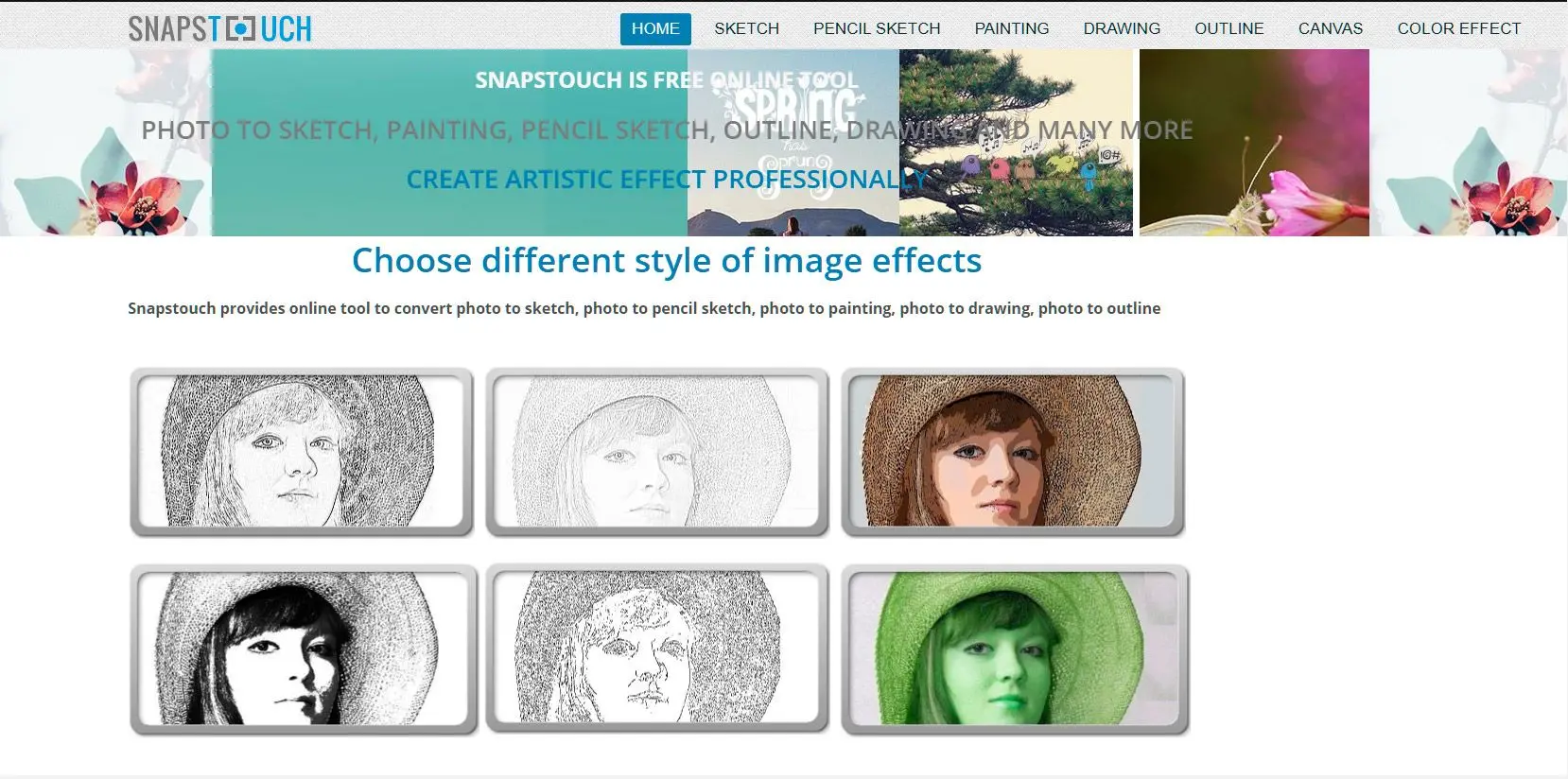
Snapstouch is a free browser tool with sketch and outline effects and no account required. It is the fastest way to test the idea, with the usual online caveats, namely a file-size limit and one image at a time.

Pros:

Runs free with no sign-up

Offers several line and sketch effects

Installs nothing

Cons:

Requires an upload, so skip sensitive photos

Caps file size and does one image at a time

Gives little fine control

Verdict: Fine for a one-off, casual outline when you just want to see the effect.
Our take: It does what it says in about a minute. We would not push a personal family photo through an unknown server, which is the recurring theme with free online tools.

7. BeFunky: best when you already use a design suite

BeFunky bundles a photo-to-sketch effect inside a broader online design and editing suite. The sketch effect that matters sits in the paid Plus tier, so it makes sense mainly if you already pay for the suite for other work.

Pros:

Sits inside a full design toolkit

Works in the browser and on mobile

Produces consistent, polished output

Cons:

Gates the sketch effect behind paid Plus

Uploads everything to the cloud

Overshoots if line drawing is all you need

Verdict: Reasonable if BeFunky is already your editor; not worth subscribing to just for this.
Our take: We tried the free editor; the genuinely useful sketch controls are gated behind Plus, so the "free" path stops short fast.

8. Adobe Firefly: best for generative line art from a prompt

Firefly is Adobe's generative AI. Its line-art generator can produce line drawings from a text prompt or a reference image, with a few free credits before you need a paid plan. It generates rather than converts, so it is closer to illustration than tracing your exact photo.

Pros:

Generates clean line styles from a prompt

Integrates with Creative Cloud

Includes a few free credits to start

Cons:

Reinterprets rather than converts your photo

Charges credits after the free tier

Requires the cloud and an account

Verdict: Pick it when you want line art inspired by a photo, not a faithful copy of it.
Our take: We ran the free credits; for a stylized result it is impressive, but if you need your actual subject reproduced line for line, it is the wrong category.

9. Clip2Comic: best line styles on iPhone

Clip2Comic is an iOS app with comic and sketch styles, several of them free, and tie-ins to printing. The free version watermarks output, and premium removes it, the standard mobile trade.

Pros:

Offers many styles, several of them free

Runs quickly on a phone

Prints and shares from the app

Cons:

Watermarks the free output

Runs on iOS only

Cramps control on a small screen

Verdict: Handy if you live on an iPhone and want a quick comic or line look.
Our take: We tried the free styles; fine for social posts, but the watermark and small canvas rule it out for anything you want to print clean.

10. Prisma: best artistic filters on the go

Prisma is a well-known mobile app for artistic, painterly filters, with sketch-style looks among hundreds of presets. It is built for stylized art, not precise outlines, so treat the line styles as one option among many.

Pros:

Packs hundreds of art styles

Runs on iOS and Android

Exports fast and social-ready

Cons:

Uses style transfer, not faithful line extraction

Locks HD export and most styles behind a subscription

Processes everything in the cloud

Verdict: Good for an artistic phone effect, not for technical or cutting-ready lines.
Our take: We used the free tier. It is fun, though the output is an interpretation and the strongest styles need the subscription.
Desktop, online, or mobile: which should you use?

TL;DR

Use desktop software for privacy, batches, and fine control; an online tool for a quick one-off when the photo is not sensitive; a phone app for casual, social results. The job decides, not the hype.

These three categories rarely fight over the same person. A teacher making one worksheet wants the fastest free browser tool. A craft seller turning 200 product photos into outlines for a cutting machine wants offline batch software, because doing that one image at a time online is the pain people describe over and over. And someone who just wants a fun sketch of their dog for Instagram is happiest on a phone.

 An online photo-to-sketch converter in the browser..

Two practical lines draw themselves. Personal photos (family, clients, anything you would not post publicly) belong on a desktop tool, for reasons the privacy section below spells out. And if you will do this more than a handful of times, the per-image friction of an online converter adds up fast, while a batch run is one click. Everything else is preference.

Is there a free option without a watermark?

TL;DR

Yes. FotoSketcher is free on Windows with no watermark, and several online tools are free but cap quality or stamp the result. For watermark-free output without uploading, a desktop tool is the safer bet.

"I do not want to pay for fancy software" is a fair ask, and one a parent on r/Parents put plainly when the online converters they tried came out "too messy or too detailed." Here is the honest map. FotoSketcher is free on the desktop with no watermark. Free online tools like Snapstouch cost nothing but limit file size and control, and many free tiers, mobile apps especially, watermark the output until you pay.

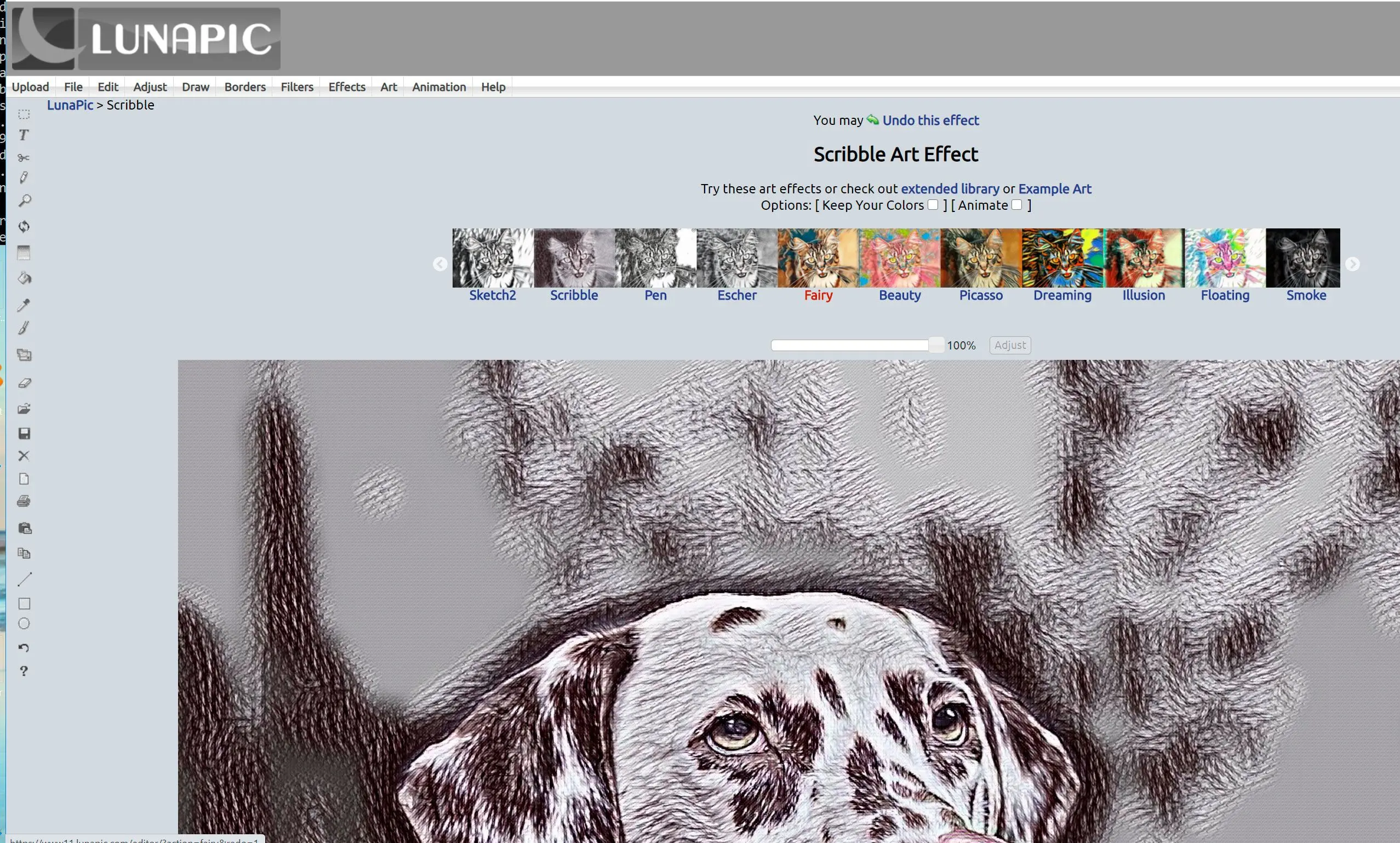
 A free online image editor with sketch effects..

Free browser editors such as LunaPic also add sketch effects at no cost, which is fine for a quick test. The catch is always the same. Free online means uploading, and free mobile often means a watermark. So a free desktop program like FotoSketcher is the one box that gives you no cost and no watermark together.

Will your photos stay private?

TL;DR

Online and AI tools upload your image to their servers; desktop software like Sketch Drawer or FotoSketcher processes it locally, so the photo never leaves your computer. For portraits, kids, or client work, that difference matters.

 An online photo-to-sketch converter in the browser..

Most online converters work by sending your photo to a server, running the effect there, and sending the result back. For a stock landscape that is nothing to worry about. For a photo of your child, a client's product, or anything covered by a confidentiality expectation, it is a real consideration, and one reason desktop tools keep a following despite all the slick web apps. A local program does the math on your own machine, so none of the dozens of photos in a folder are uploaded, stored, or used to train anything. When you cannot confirm where a free site stores your uploads, assume you cannot, and keep sensitive images offline.

How to convert many photos at once

TL;DR

Batch conversion is where desktop software pulls ahead. Point Sketch Drawer or a paid AKVIS tier at a folder, apply one preset, and process the whole set in a single pass. Online tools almost always make you go one image at a time.

Volume is the clearest dividing line in this whole category. Online converters are built around one image per visit (upload, wait, download, repeat). That is fine for a single picture and miserable for fifty. People who do this for craft or print work end up on desktop software for exactly this reason. You set the look once, drop in a folder, and let it run; a folder of 200 photos that would eat an afternoon one image at a time runs in a single pass. Sketch Drawer can also be scripted, so the same batch slots into a larger production pipeline. If your project is more than a handful of images, batch support should outrank almost every other feature on your list.

Controlling line thickness and contour for Cricut, laser, and stencils

TL;DR

For cutting machines, laser engraving, and stencils you need control over edge strength and line thickness, not a fixed browser filter. Desktop tools with contour and stroke settings give cleaner, more cuttable lines; auto-traced results often come out rough at the junctions.

Cutting and engraving are where casual filters fall apart. A Cricut or a laser cutter needs deliberate, connected lines, and the people doing it know the pain. On r/cricut, one maker described the usual advice as "convoluted" and walked through a manual Inkscape trace just to get a single clean line; another noted that auto centerline traces come out "pretty rough at junctures." Over in the Adobe Illustrator community, the consensus was the same: automated photo-to-vector alone gives poor lines, and you clean up by hand.

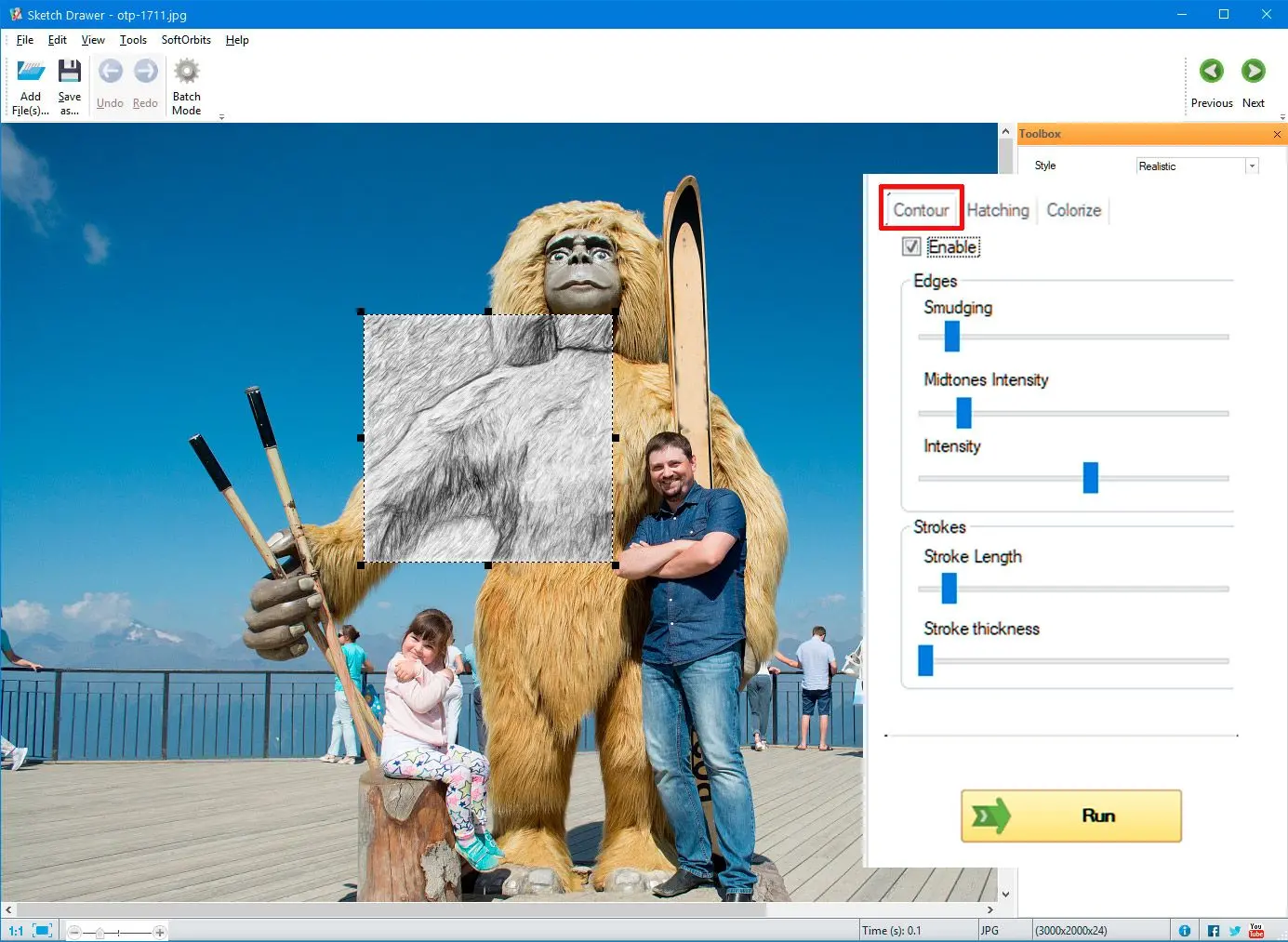
 Contour controls for line strength and stroke..

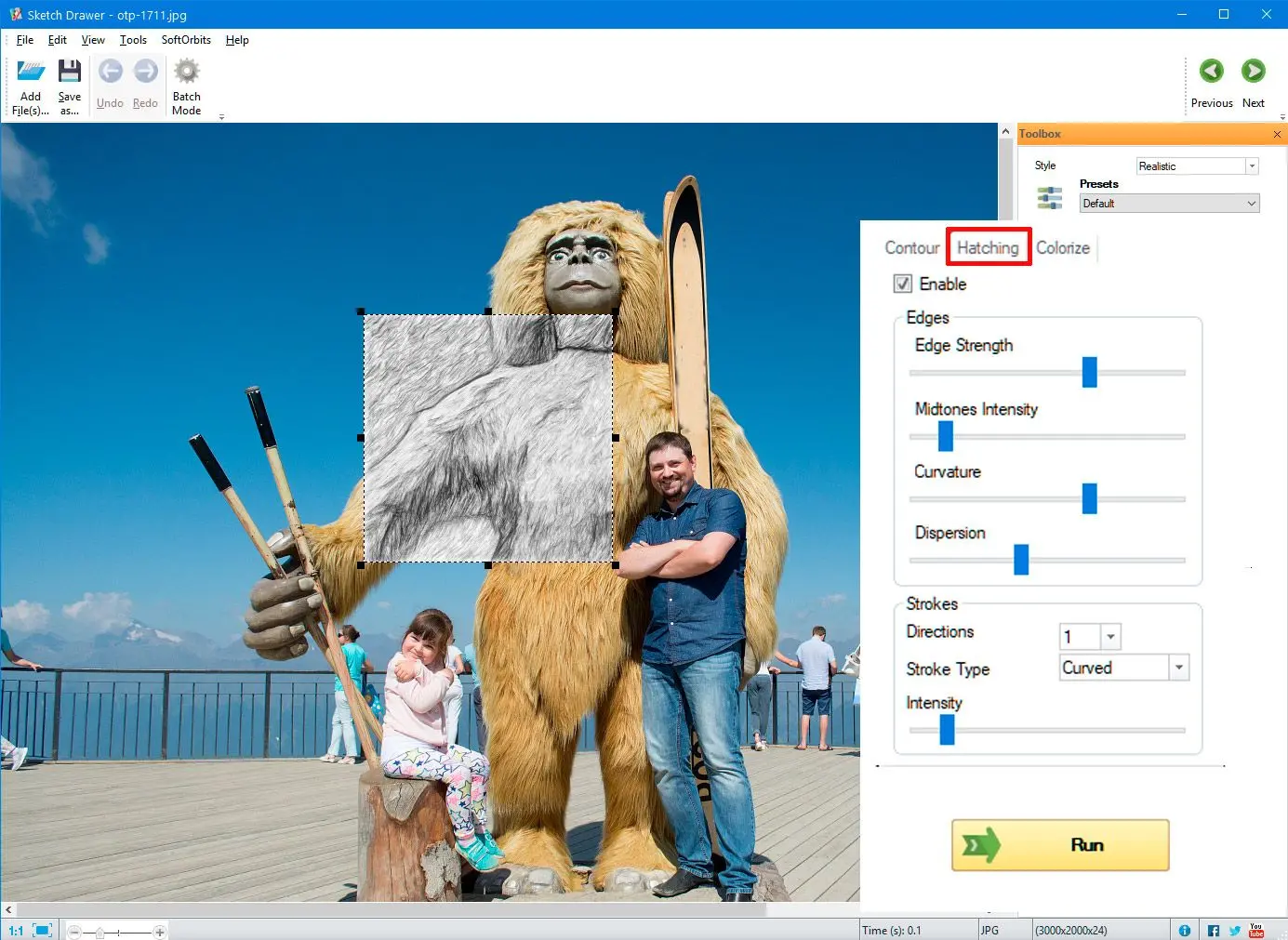
The shortcut is to start from a tool that gives you contour and stroke control before you ever trace, the same idea behind a dedicated tool to make a stencil from a photo. In Sketch Drawer, the Contour panel sets edge strength and stroke length and the Hatching panel controls shading, so you can dial the result down to a near-pure outline and only then trace it to vector if your cutter needs SVG. Starting from clean lines is far less work than fixing messy ones.

 Hatching controls for shading direction and intensity..

Why online tools look messy, and how to get clean lines

TL;DR

Automatic tools struggle with hair and busy backgrounds, turning fine detail into noise. Clean results come from controllable edge detection plus a simpler subject and good lighting, or a quick manual cleanup afterward.

The complaint repeats across every forum. Hair becomes a scribble, faces pick up stray lines, and cluttered background reads as static. It happens because automatic edge detection cannot tell which edges you care about, so it draws all of them. Two things fix it. First, give the tool a fighting chance. A clearer subject, decent contrast, and a plain background produce far cleaner lines than a busy snapshot. Second, use a tool where you can lower the detail, so pulling edge strength down drops the noise with it.

 Adding photos to SoftOrbits Sketch Drawer..
 Adding photos to SoftOrbits Sketch Drawer..

The honest truth is that no tool is perfect on a hard photo, and a minute of cleanup beats fighting the converter for twenty. But starting from adjustable software gets you most of the way there before any manual work begins, which is the whole idea behind a tool built to convert a photo straight to line art.

Making coloring pages from your own photos

TL;DR

A coloring page is just a clean black-and-white outline with no shading. Use a Classic or outline preset, turn hatching off, and keep lines bold so a child can color inside them. Desktop tools give the most consistent, printable result.

Personalized coloring pages (a pet, a grandparent, a favorite toy) are one of the most common reasons people search for this in the first place. The recipe is simple. You want bold, closed outlines and no gray shading, so a kid can actually color inside the lines. That means a Classic or schematic-style preset with hatching turned off and contrast up. Online generators try, but results swing from too faint to too detailed, the exact frustration that sends parents looking for something predictable. A desktop preset you can save and reuse turns every coloring page from a photo into the same clean, printable result, the same logic behind a dedicated picture outline maker.

Sketch Drawer Sketch Drawer
Best photo to line drawing software for Windows in 2026. Compare 10 tools for clean line art, batch conversion, and Cricut-ready outlines.

Want to see your photos made into realistic pencil sketches? We trained an AI to do just that!

Sketch Drawer Screenshot.


🙋Frequently Asked Questions

For offline work with control and batch processing, SoftOrbits Sketch Drawer is our top pick on Windows. If you want free, FotoSketcher is the desktop option without a watermark, and Snapstouch is the quickest free browser tool for a one-off.

Use FotoSketcher on Windows for a free, watermark-free desktop result, or a free online tool like Snapstouch or LunaPic for a quick single image. Free online tools upload your photo and limit file size, so keep sensitive images offline.

Desktop programs such as Sketch Drawer, FotoSketcher, and AKVIS run on your computer and do not upload anything. Online and AI converters (VansPortrait, Snapstouch, BeFunky, Firefly) send your image to their servers.

Yes, with desktop software. Sketch Drawer batches a folder in one pass and adds a command line; higher AKVIS tiers also batch. Online tools almost always process one image at a time.

Use a desktop tool with contour and line-thickness control, then trace the clean result to vector if your machine needs SVG. Auto-traced lines from instant browser tools tend to come out rough at the junctions.

No. Dedicated tools like Sketch Drawer or FotoSketcher do it directly. Photoshop and Illustrator can do it with Image Trace, but it takes more steps and usually manual cleanup.

Automatic edge detection draws every edge, including hair and background clutter. Use a clearer subject with good contrast, lower the detail or edge-strength setting, and do a quick cleanup if needed.

Yes. Apps like Clip2Comic on iOS or Prisma on iOS and Android have free sketch styles, though many watermark the free output or gate HD export behind a subscription.

Sources