Here is the quick version

  1. 1️⃣ Open the marked-up photo or screenshot in a markup remover.
  2. 2️⃣ Paint over the scribble, arrow, or black marker.
  3. 3️⃣ Click Remove and save the clean image.
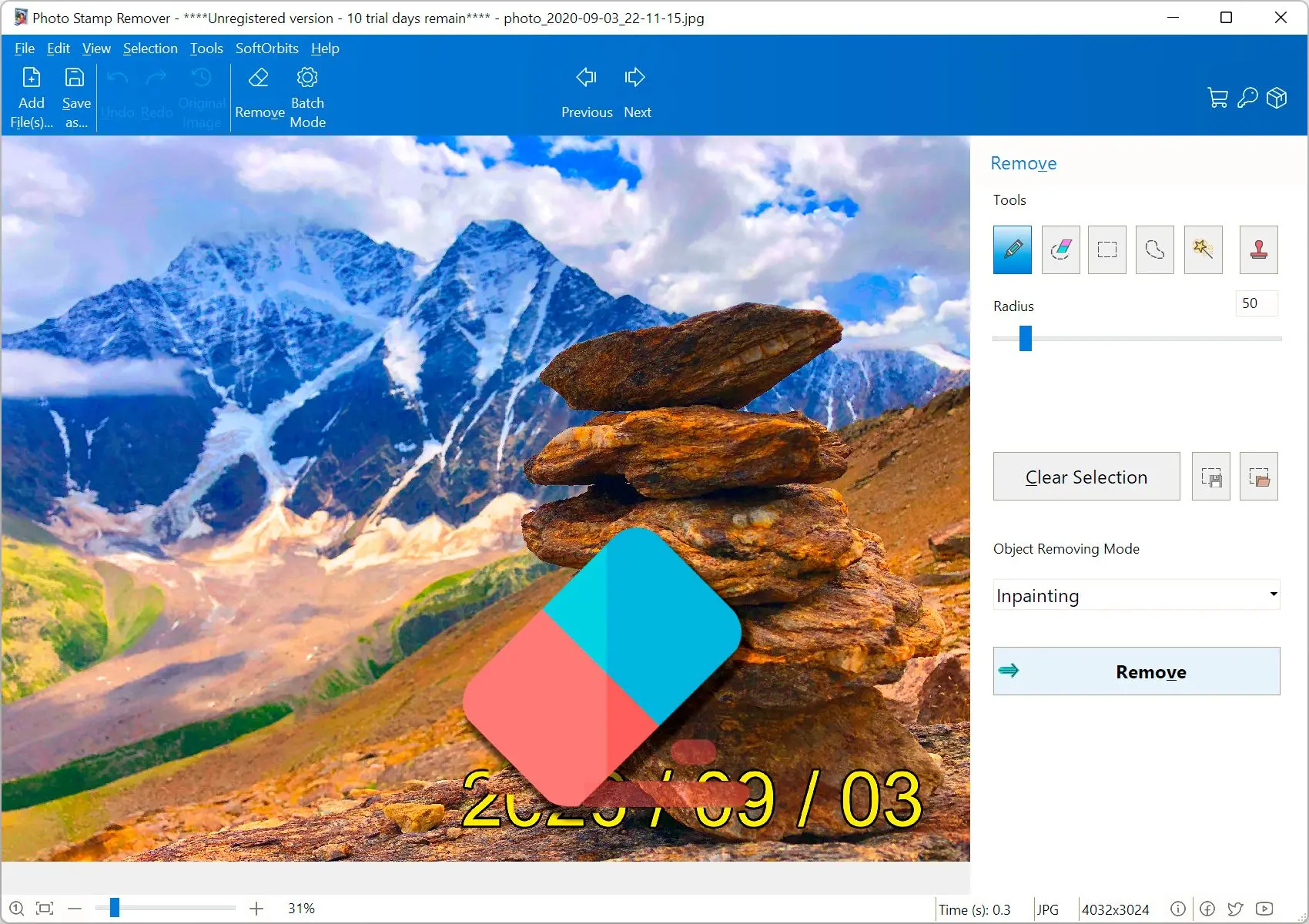
Photo Stamp Remover Screenshot.
Eugene - CEO at SoftOrbits, Candidate of Technical Sciences, has more than 16 years of expertise in software development, photo and multimedia applications, enhancing and transforming digital images and videos.
📅 Last updated on:  2026-06-22

When you need to remove markup from a photo, the strokes are part of the image file now, not a layer you can switch off. Someone scribbled on a screenshot, drew a red arrow on a receipt, or blacked out a face before sending it. A markup remover reads the pixels around the drawing, works out what was behind it, and fills the gap. This guide covers the desktop route with Photo Stamp Remover, the quick phone tricks, free online tools, and where each one quietly fails.

What you will learn
Apply in 10 min Saves 1 hEasy

Can you remove markup from a photo sent to you?

TL;DR

Yes. A desktop markup remover does not care who drew the markup or which app made it. It works at the pixel level, so a photo that arrived through Messages or WhatsApp cleans up the same as one you marked yourself. The one limit is coverage. Thin scribbles and arrows come off with almost no trace, while a thick marker hiding a whole face can only be filled with a plausible reconstruction.

The received-photo case is the most common, and the reason this page exists. Someone annotates a photo on their phone, flattens it, and sends it on. By the time it reaches you there is no undo button, because the markup is no longer a separate object. People hit this wall constantly. A Quora thread on getting a red markup pen off someone's screenshot is one of many asking the same question.

The fix stays the same no matter which app made the marks. Open the image in software that reconstructs the background, select the markup, and let it fill. Photo Stamp Remover does this on Windows with two engines, fast inpainting for simple backgrounds and AI Generation for faces, printed text, and busy patterns.

Why markup gets baked into the pixels

TL;DR

"Baked in" means the drawing was merged into the photo data when the file was saved or sent, so the eraser that drew it can no longer find it. A phone's markup tool treats your strokes as a removable layer only until you tap Done and the file is flattened. After that, every pixel is just a pixel, and only a tool that rebuilds the background can take the marks out.

On an iPhone or iPad, the built-in Markup eraser removes only the strokes you added with the Markup tool, in the same session, on the same device. Once the photo is saved, shared, or re-opened, those strokes stop being editable objects. Users run into this directly. In an Apple Community thread, people describe markups going permanent the moment they leave the Markup tool. Apple's own Apple Support documentation frames Markup as an annotation layer, which is exactly why the eraser cannot touch a flattened file.

So a received photo, a saved screenshot, or anything exported as a JPG is one flat image. The drawing and the background share the same pixels. To remove markup at that point you need software that reads the pixels around the mark and paints in a best guess, the same idea you use to remove drawings from a photo or strip an unwanted object.

Remove markup with Photo Stamp Remover

Download and install Photo Stamp Remover

Grab the trial for Windows and run the installer. It works on Windows 7 through 11, and it runs offline, so a private screenshot never leaves your PC.

Open the photo or screenshot

Use Files / Add or drag the image into the program window. Multiple files are accepted, so you can queue a folder of marked-up screenshots and clean them all at once.

 Markup Remover Screenshot: Add Images..

Select the markup

Pick the selection tool that fits the shape. Marker is quickest for free-hand scribbles. Use Rectangular Selection for straight arrows and boxes. Color Selection grabs every pixel of one color at once, which is ideal for a single bright marker on a photo. Zoom to about 200% so the selection hugs the edges of the mark.

 Markup Remover Screenshot: Select the drawing with a marker..

Pick a removal method

The default Inpainting is fast and handles most screenshots and simple backgrounds. If the markup covers a face, printed text, or a complex pattern, switch to AI Generation. It takes up to about a minute but rebuilds the hidden area far more convincingly.

 Markup Remover Screenshot: object removal options..

Click Remove and save

The program fills the selected area. With inpainting the result appears in a few seconds. Check the edges, then save the clean copy under a new name so you keep the original.

 Markup Remover Screenshot: The result..

Photo Stamp Remover Photo Stamp Remover

Remove unwanted watermarks, text, and logos from your images with the free SoftOrbits Watermark Remover.

How do you clean up leftover traces after removal?

TL;DR

Inpainting handles most cases on the first try, but on repeating patterns, skin, or small text a faint trace can remain. The Clone Stamp tool fixes those. Hold Alt, click a clean area to set the source, then paint over the leftover so real pixels from nearby fill it in. Two or three short strokes usually finish the job.

Complex backgrounds are where automatic fills get caught out. A scribble across a brick wall, a face, or a paragraph of text leaves the algorithm guessing, and sometimes the guess is close but not perfect. The Clone Stamp Tool gives you manual control over those last spots.

  • Hold Alt and click a clean area near the leftover to set the source point.
  • Paint across the leftover. Pixels from the source point fill in as you draw.
  • Repeat in light passes until the patch blends with the texture around it.

How to remove a red marker or colored scribble from a screenshot

TL;DR

Screenshots are the easy case. Backgrounds are flat UI colors or solid gradients, and the markup is usually one bright color. Use Color Selection to grab every red or black pixel in a single click, then Remove. Inpainting fills the flat area almost invisibly. Over text, the tool rebuilds the letters from the surrounding shapes, and the result is cleanest when the marker covers less than about half of each character.

A red circle, a yellow highlight, or a black marker on a screenshot stands out from the background by color, which is exactly what Color Selection exploits. One click grabs the whole stroke no matter how jagged it is, and you can widen the tolerance slider if a marker shades from bright red to dark, so you skip the careful tracing.

  • Open the screenshot in Photo Stamp Remover.
  • Click the red or black scribble with Color Selection to grab all of it at once.
  • Click Remove. The flat background fills in with no visible patch.

For a black marker laid over text, the program reconstructs the letters from the spacing and shapes around them. It is genuinely good, yet it is rebuilding, not revealing. If the goal is to read what was hidden under a heavy redaction, that information is gone. The same color-based approach works to remove text from an image when the text sits on a clean background.

Does AI fill recover what was hidden under the markup?

TL;DR

No. AI Generation reconstructs a plausible background, it does not recover the original pixels the markup covered. For thin scribbles, arrows, and highlights over varied photos, the rebuild is so close it reads as the real thing. For a face fully blacked out or text under a solid bar, you get a believable invention, not the hidden content. If someone redacted a document to protect it, no tool un-redacts it. That is the point of redaction.

Knowing what these tools actually do helps you set expectations. Inpainting samples the ring of pixels just outside the selection, maybe 5 to 10 pixels deep, and extends that texture inward. Quick and clean on flat UI panels or a repeating brick wall. AI Generation goes further. It predicts what a plausible background looks like, then paints it in, which is how it handles a face, a printed paragraph, or a busy JPG pattern that simple sampling would smear.

Inpainting versus AI Generation:

Use inpainting first, since it is faster and usually enough. Switch to AI Generation only when the area under the markup is structured, like a face, text, or a logo, and the fast fill leaves an obvious smudge. Both reconstruct; neither performs magic recovery of covered detail. Treat any claim that an AI tool "reveals" hidden text with healthy doubt.

How to remove markup on your phone without a computer

TL;DR

The phone route works only for light annotations. The iPhone Markup eraser undoes strokes that are still editable in the same session; once the photo is saved or received, it cannot touch them. After that your real options are an app that rebuilds the background, such as Snapseed Healing on iOS or Android, or, as a weak last resort, lowering brightness and raising exposure to fade the mark. That only hides it, and a recipient can often bring the mark back.

On iPhone or iPad:

If you drew the markup yourself and have not left the editor, open the photo, tap Edit, open the Markup tool, and erase the stroke. If the markup is baked in, meaning your own saved photo or one someone sent you, the eraser does nothing. Apple Community answers spell this out. The markup eraser only removes elements added with the Markup tools, so a received photo needs a real photo editor. Snapseed's Healing brush is the common free pick for small spots.

On Android:

Android has no system-wide markup eraser for flattened images either. Snapseed, which is free, is the standard answer. Open the photo, choose Healing, and drag a finger across the markup so it samples nearby pixels. It is fine for small scribbles on simple backgrounds and struggles with the same hard cases as everything else, like a face or a block of dense text.
A quick caution on the brightness-and-contrast trick that circulates online. Lowering brightness can fade a light marker, but it only reduces visibility; the marked pixels are still there, and anyone can raise the levels to bring the mark back. For anything you actually need clean, the desktop route is the dependable one.

Online vs desktop: which markup remover should you use?

TL;DR

Use a free online markup remover for a small, non-sensitive image and a quick one-off. Use desktop software when the photo is private, high-resolution, part of a batch, or has markup over a face or text. Online tools are convenient but they upload your image to a server, cap file size near 5 to 10 MB, and handle hard reconstructions less reliably, which is a real concern for a screenshot that holds personal details.

Free browser tools like Pokecut will remove a light scribble in two or three clicks, and for a meme or a throwaway screenshot that is perfectly fine. The trade-offs show up with anything that matters: most cap the upload near 5 to 10 MB, so a full 4000 x 3000 phone photo gets downscaled before you even start.

FactorOnline markup removerDesktop (Photo Stamp Remover)
PrivacyImage uploaded to a serverStays on your PC, offline
File size / resolutionOften capped near 5-10 MBFull resolution
BatchUsually one at a timeMany files in one pass
Hard fills (faces, text)Hit or missAI Generation plus Clone Stamp
CostFree, with limitsFree trial, paid license

If the screenshot has a name, an address, or an account number anywhere on it, keep it off third-party servers. Local processing is the safer default, and it is the same logic behind using a desktop tool to remove emojis from a picture you would rather not upload.

Why Photo Stamp Remover fits markup removal

TL;DR

Photo Stamp Remover is built for exactly this job. Select a mark, rebuild the background, move on. Inpainting clears flat areas in a few seconds. AI Generation takes up to a minute but handles faces and printed text. Color Selection grabs a whole scribble in one click, the Clone Stamp cleans the last spots, and the installer runs on Windows 7 through 11.

Pros:

Two removal engines, fast inpainting and AI Generation for faces, text, and patterns

Color Selection grabs a whole colored scribble in one click

Clone Stamp for manual cleanup on tricky backgrounds

Batch a whole folder of marked-up screenshots in one pass, full resolution kept

Cons:

Windows only (7 through 11), no Mac build

Not a full photo editor for retouching beyond object and markup removal

For a reliable desktop fix, use Photo Stamp Remover. The same selection-and-fill workflow also strips captions and watermarks, so it handles a stray date stamp the same way it handles a red marker.

Pitfalls when removing markup from a photo

TL;DR

Most failed cleanups come from expecting an eraser to undo a flattened mark, expecting AI to recover redacted content, or trusting the brightness trick to truly hide something. Know the limits before you start and you avoid the frustration users hit again and again.

✔️ Expecting the markup eraser to work on a saved photo.

The iPhone and Android markup erasers only touch strokes that are still live in the editor. People asking how to remove marks from a photo or screenshot repeatedly hit this after the file is saved. Once it is flattened, reach for software that rebuilds the background.

✔️ Believing AI can un-redact a blacked-out area.

A thick marker over a face or a solid bar over text destroys the original pixels. AI Generation fills a plausible guess; it does not recover what was hidden, as people discover when they try to read paint-covered text in a photo.

✔️ Trusting the brightness trick to hide your own markup.

Fading a marker by lowering brightness leaves the pixels in place. A Quora discussion shows people doing the reverse, raising the levels to read a marker someone thought they had hidden. If you are covering something sensitive, draw a solid opaque shape and flatten it, do not just dim it.

✔️ Uploading a sensitive screenshot to a web tool.

Convenient, but the file lands on someone else's server. For anything with personal data, keep it on your own machine.

✔️ Overwriting your only copy.

Save the cleaned image under a new name. If a fill looks off later, you want the original back to retry with a different tool or method.

Photo Stamp Remover Photo Stamp Remover
Markup remover for Windows: remove markup from a photo or screenshot - drawings, scribbles, arrows, black marker - with fast inpainting or AI fill.

Remove unwanted watermarks, text, and logos from all types of images.

Photo Stamp Remover Screenshot.


🙋Frequently Asked Questions

Open it in Photo Stamp Remover, brush over the markup with the Marker tool, and click Remove. The inpainting engine fills the area, and it works no matter which app or device added the markup.

Not with the iPhone Markup eraser, which only works on strokes still live in the editor. For a photo someone sent you, use an app that rebuilds the background, such as Snapseed Healing on the phone or Photo Stamp Remover on a PC.

Use Color Selection to grab every red pixel in one click, then Remove. Red contrasts with most screenshot backgrounds, so the selection stays precise and the flat area fills cleanly.

No. AI Generation reconstructs a believable background but cannot recover the original pixels under a solid mark. Thin scribbles and arrows come off with little trace; a fully blacked-out face becomes a plausible invention.

Photo Stamp Remover offers a free trial that covers the full workflow. Free online tools work for small, non-private images but upload your file and cap the size.

Yes. Snapseed has a free Healing brush. Open the screenshot, choose Healing, and wipe across the markup. It suits small scribbles on simple backgrounds.

Select the marker with Color Selection or Marker and click Remove; the tool rebuilds letters from surrounding shapes. Results are best when the marker covers less than about half of each character, since heavier coverage cannot be reliably restored.

No. The tool edits only the selected area and leaves the rest of the pixels untouched, so the photo keeps its original resolution and quality.

Sources

  • Apple Support explains how Markup works as an annotation layer on iPhone and iPad.
  • Microsoft Snipping Tool documents the built-in eraser and annotation behavior on Windows.
  • Google Photos Help covers editing and revert-to-original behavior for saved photos.
  • PerfectCorp walks through AI-based scribble removal and its limits on faces and text.