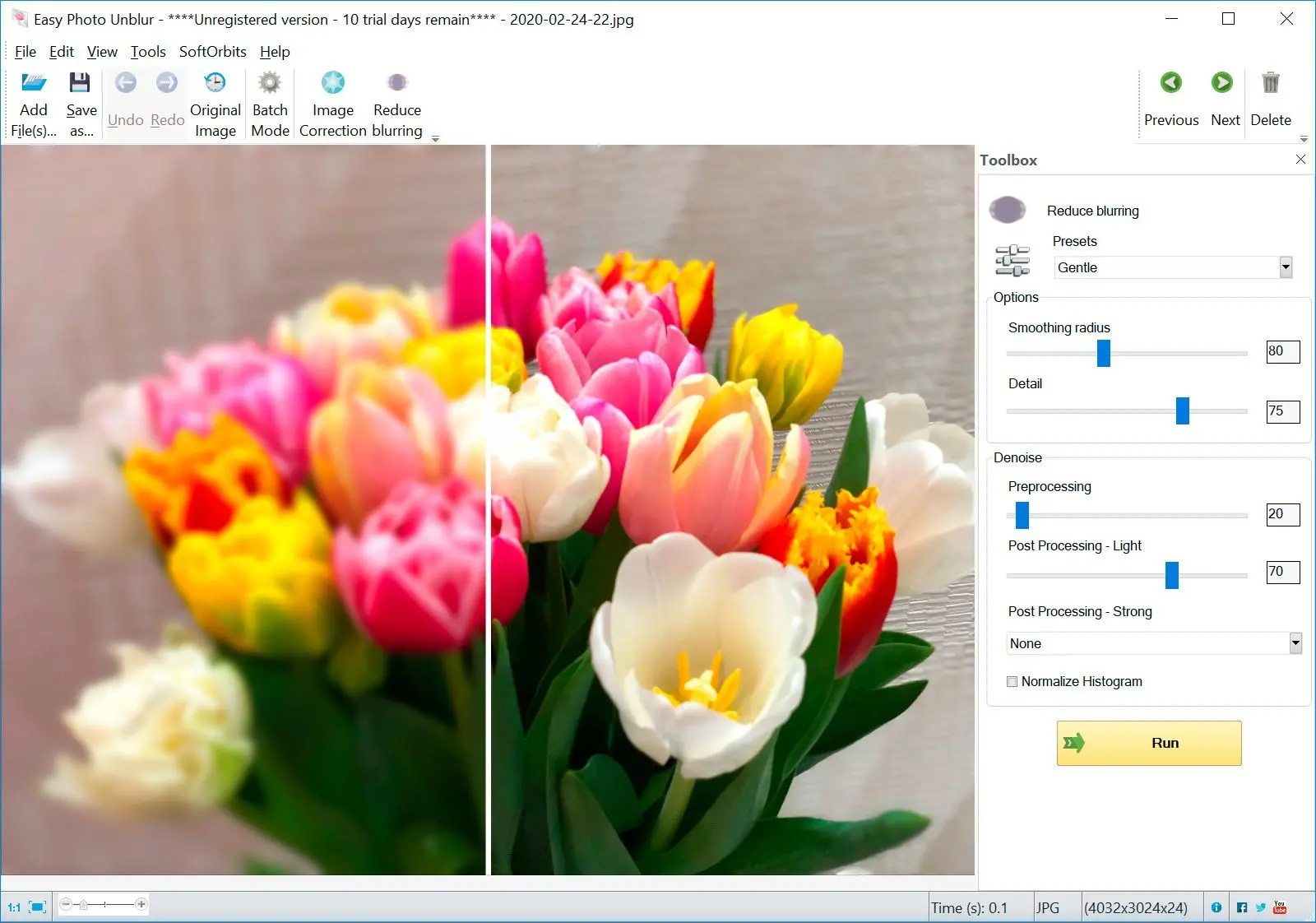
Easy Photo Unblur leads for fast offline fixes; Topaz for AI recovery; Photoshop and DxO for control; GIMP for free; Luminar and Lightroom in between.
| Tool | Best for | Price model | Offline? | Platform | Batch |
|---|---|---|---|---|---|
| Easy Photo Unblur (ours) | Fast offline blur fix, folder jobs | Paid, free trial | Yes | Windows | Yes |
| Topaz Photo AI | AI recovery on hard, noisy files | Paid (one-time) | Yes | Win / Mac | Yes |
| Adobe Photoshop | Precise manual sharpening | Subscription | Yes | Win / Mac | Via actions |
| Adobe Lightroom Classic | Sharpening in a RAW workflow | Subscription | Yes | Win / Mac | Yes |
| GIMP | Free unsharp mask | Free | Yes | Win / Mac / Linux | Limited |
| Luminar Neo | Beginner AI sharpening | One-time or sub | Yes | Win / Mac | Yes |
| DxO PhotoLab | RAW first-pass sharpening | Paid (one-time) | Yes | Win / Mac | Yes |
1. Easy Photo Unblur - best for fast, offline blur fixes
Most people who land here have a folder of soft or shaken shots, not one hero image to fuss over. Easy Photo Unblur is built for exactly that. It reads the blur in a photo and corrects it on your own machine, with a preview before you save. It targets motion blur, missed focus, and softness from heavy compression, and it does the work right on your desktop. The workflow is short. Drag in one photo or a whole folder, pick a blur preset that matches the problem, set a post-processing preset to balance sharpness against noise, then press Run and save one image or the batch.
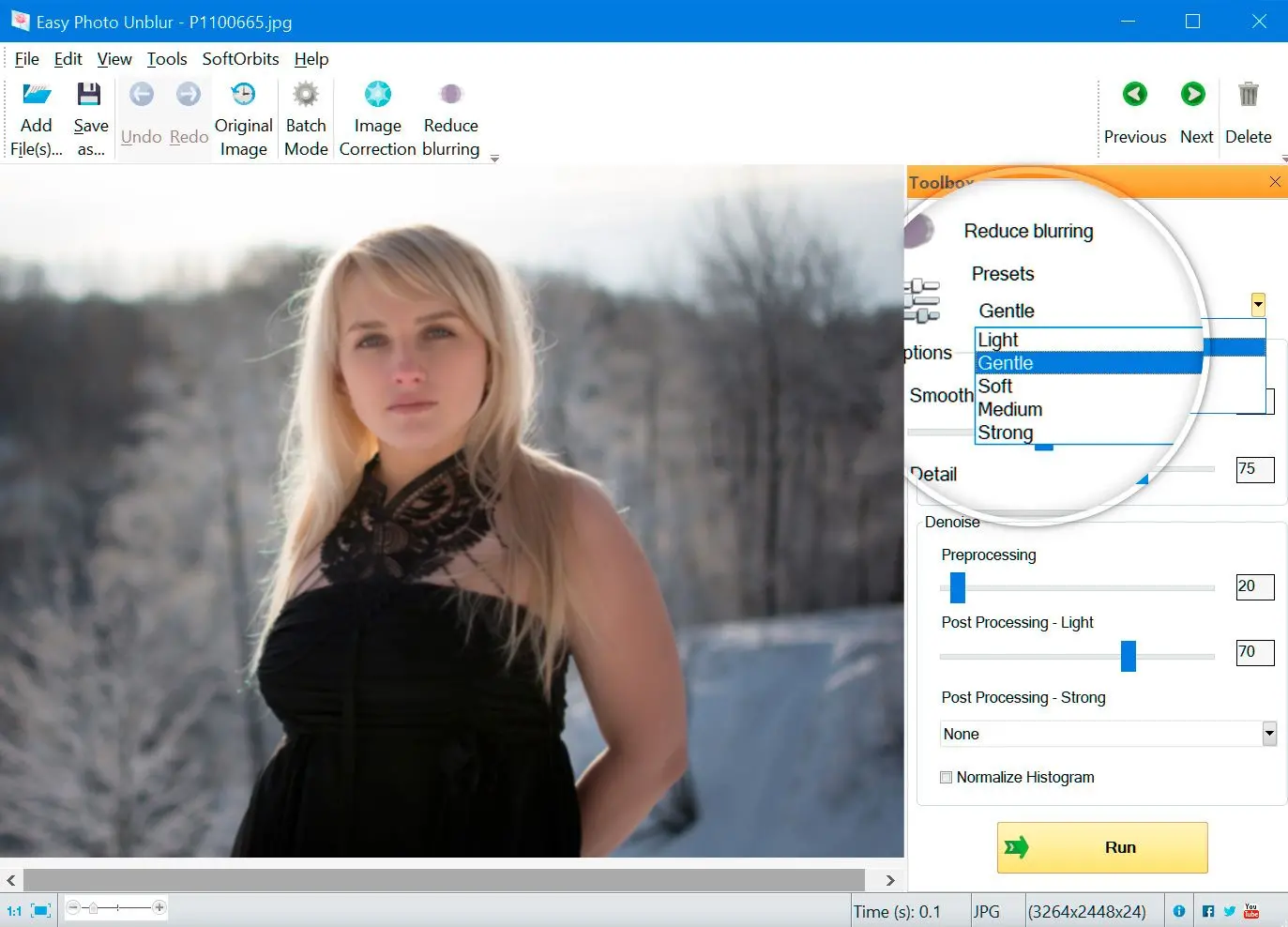
Pros:
Targets motion blur and soft focus, not just edge contrast
Batches a whole folder in one pass
Works fully offline; your photos never leave the machine
Full preview before you save; one-time license with a free trial
Cons:
Windows only, no Mac build
Not a full editor, so no layers or RAW catalog
Fewer manual sliders than Photoshop or DxO
2. Topaz Photo AI - best AI recovery for hard, noisy files
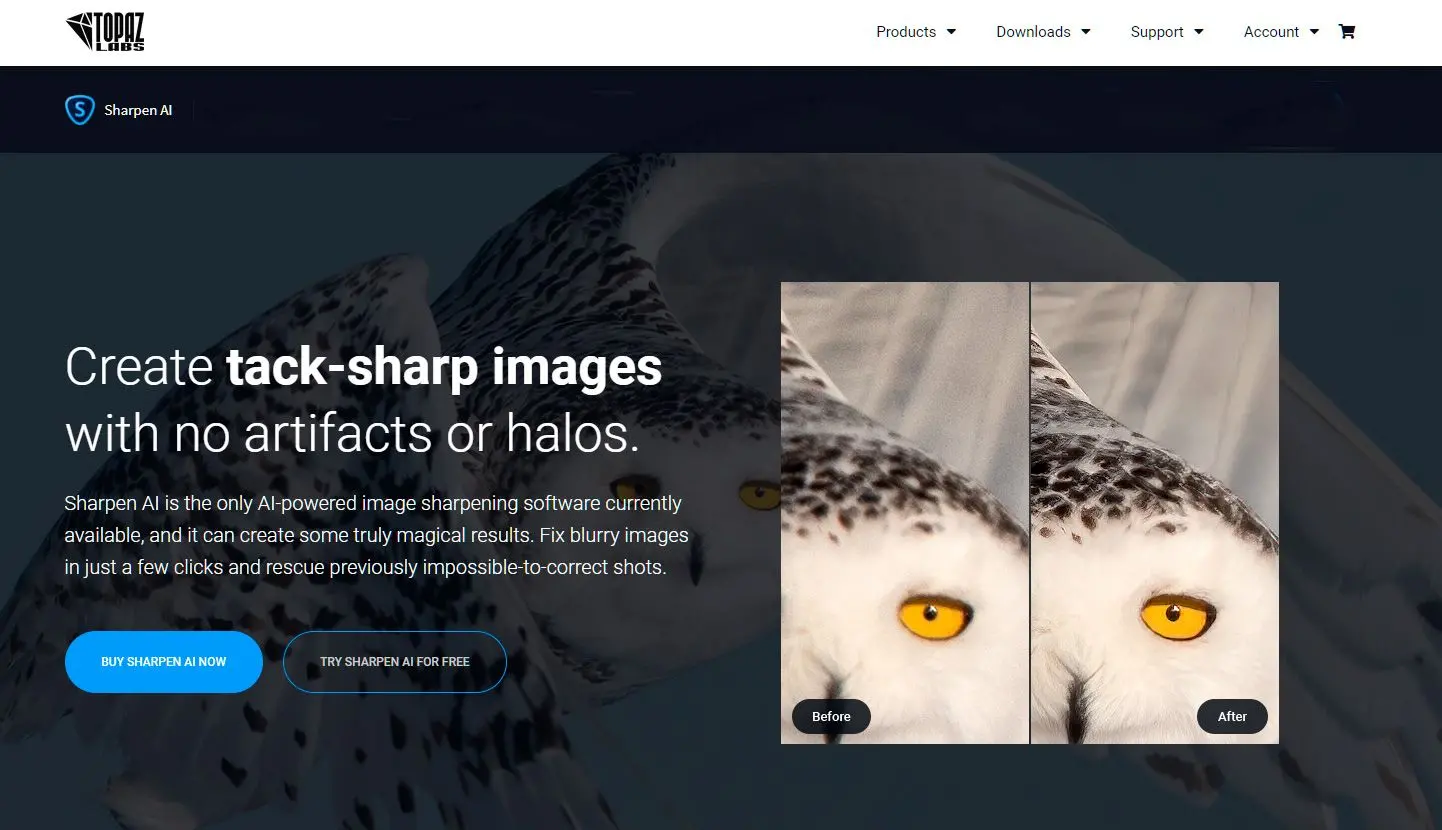
Photographers reach for Topaz when a shot is genuinely damaged by heavy noise, camera shake, or low-res faces. On r/photography, long-time users say it has saved photos other tools could not, then add the catch in the same breath. Its sharpening can create noticeably weird artifacts if you lean on it, and you learn to spot the fake detail after a while. It bundles AI models such as Standard, Strong, Lens Blur, and Motion Blur with manual strength and noise controls.
Pros:
Strong AI recovery on noise, shake, and low-res detail
Several blur-specific AI models with manual control
One-time purchase, no subscription
Cons:
Expensive next to single-purpose tools
Wants 16 GB of RAM and a capable GPU, and renders slowly
Over-sharpens portraits into artifacts if pushed
Our take: we did not run a paid license for months, so this is read from reviews and forum threads rather than a bench test. The consistent line from owners is "powerful, but spot-check the output."
3. Adobe Photoshop - best for precise manual sharpening
Photoshop is the standard when you want to decide exactly how much edge contrast lands and where. Its Smart Sharpen and Unsharp Mask filters, plus the High Pass trick, give finer control than any one-button tool, and editors who study it tend to prefer Smart Sharpen over plain Unsharp Mask. Run the filter on a Smart Object and the sharpening stays non-destructive, so you can dial it back later.Pros:
The most precise manual control (Smart Sharpen, Unsharp Mask, High Pass)
Non-destructive on Smart Objects
Industry standard with endless tutorials
Cons:
Subscription only
Steep learning curve for a simple fix
No automatic deblur; you do the work by hand
Verdict: The pick if you already live in Photoshop and want hands-on control instead of a fix-it button.
4. Adobe Lightroom Classic - best for sharpening inside a RAW workflow
If you shoot RAW and process by the hundred, Lightroom sharpens during conversion in its Detail panel, and the masking slider keeps the effect on edges instead of smooth skin and sky. It is the same subscription as Photoshop and built around a catalog, so sharpening is one step in a managed workflow rather than a standalone tool.Pros:
Excellent first-pass sharpening on RAW files
Masking slider protects skin and sky
Catalog workflow suits large shoots
Cons:
Subscription only
Not a deblur tool for heavy motion blur
Catalog overhead for a quick one-off
5. GIMP - best free sharpener
GIMP is the free, open-source route, and its Unsharp Mask uses the same fundamental technique the paid tools do. It blurs a copy, compares it to the original, and boosts the edge difference above a threshold you set. You get manual radius, amount, and threshold, plus a High Pass option, at no cost. The trade is a dated interface and more patience.Pros:
Free and open-source
Same unsharp-mask technique as paid editors
Manual radius, amount, and threshold control
Cons:
Dated, fiddly interface
No AI deblur for motion or focus blur
Push it too far and it haloes like any unsharp tool
6. Luminar Neo - best AI sharpening for beginners
Luminar Neo leans on AI. Its Structure tool sharpens textures across a photo while leaving skin tones alone, so landscapes and architecture crisp up without wrecking portraits. It sells as a one-time license or a subscription and works as a standalone app or a plugin. The catch reviewers note is that its AI sharpening and denoise trail Topaz, and it can be slow to render.Pros:
AI Structure sharpens textures and protects skin
Beginner-friendly; standalone or plugin
One-time license option
Cons:
AI sharpening weaker than Topaz
Can be slow to render
Easy to over-process on strong settings
7. DxO PhotoLab - best for RAW shooters chasing image quality
DxO is the technical pick. Its first-pass RAW conversion sharpening, paired with DeepPRIME denoise and lens corrections, is rated by reviewers above the rest for technical image quality, with little competing on its RAW sharpening. It offers unsharp-mask-style sharpening rather than AI deblur, and it ships as a one-time license aimed at people who care about pixel-level results.Pros:
Top-rated RAW first-pass sharpening, per reviewers
DeepPRIME denoise and lens corrections built in
One-time license, no subscription
Cons:
Unsharp-mask only, no AI deblur for shake
RAW-centric workflow with a learning curve
Pricey for casual use


 Easy Photo Unblur