TL;DRA beginner-friendly editor gets you a good-looking photo fast, costs what you expect, and never punishes you for not knowing the jargon. We weighed ease of use most heavily, then price, then how much the software automates. Windows performance and real user feedback rounded out the five.
We judged every tool against five things a new editor actually cares about. How easy is it to use? You should be able to open a photo and improve it in a few minutes without a tutorial. What does it cost, and how, since a one-time purchase and a monthly subscription are very different commitments for someone editing family photos. How much does the software do for you, given that most beginners want an automatic result before they ever touch a slider. Does it run well on Windows, including older laptops. And what do people actually report on forums and in reviews, rather than what the marketing page claims. ShootProof, in its beginner guide, notes that understanding the basics can take as little as an hour, a fair bar for a tool you should be able to use in your first sitting.
A note on the "Our take" line in each card below. We use SoftOrbits Photo Retoucher ourselves on Windows, and we have spent time in the free and open-source tools here. For the subscription and paid-only apps we did not buy, our read is based on their documentation, track record and user reports, and we say so plainly rather than pretend we ran a three-week test.
The best photo editing software for beginners, reviewed
1. SoftOrbits Photo Retoucher, best for automatic fixes and old photos
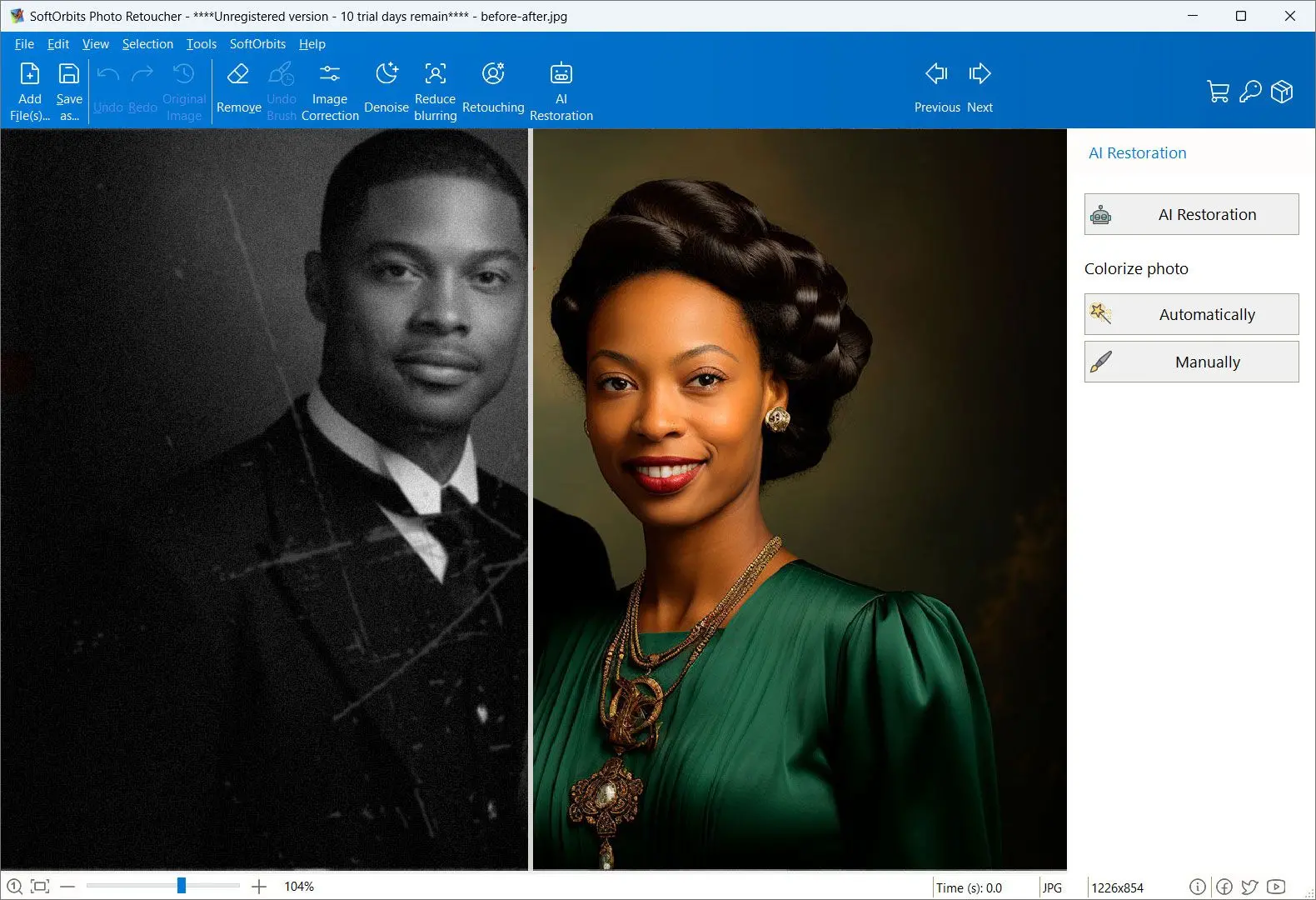
Most beginners do not want to learn masking before they fix a photo, and that is the gap
SoftOrbits Photo Retoucher fills. It leans on AI to do the heavy lifting. A single click restores a scratched or faded photo, and the same automatic approach handles noise reduction, face reconstruction and
colorizing black-and-white photos, all running locally on your Windows PC. It can also wipe out unwanted objects or old date stamps, and it enlarges a photo up to 800% (8x) before printing. It works on images up to 25 megapixels and runs on Windows 7 through 11, with nothing uploaded to a server, so private family photos stay on your own machine. This is the tool we reach for when the job is "make this old photo look good" rather than "design something from scratch".
Pros:
AI restoration and auto-colorize, applied in one click
Runs locally on Windows, no cloud upload
Batch mode for processing a folder at once
Removes objects and dates without manual masking
Cons:
It is a focused AI editor and restorer, not a full layers-and-masks design suite
Verdict: Choose Photo Retoucher if you want good results from old or imperfect photos without a learning curve.
Our take: This is the pick we actually use for restoration and quick cleanups, and the auto-colorize still surprises people. We make it, so weigh that, but the hands-off workflow is the honest reason it sits at the top of a beginner list.
2. Adobe Photoshop Elements - best paid all-rounder with guided edits
Photoshop Elements is the gentle on-ramp Adobe built for people who find full Photoshop intimidating. Its Guided edits walk you through a result step by step, so you learn the move while you make it. Crucially for beginners burned by subscriptions, Elements is a one-time purchase and is not part of the Creative Cloud subscription, a point that comes up again and again when people on photography forums ask for something they can pay for once. It runs on Windows and macOS, opens camera RAW files through Adobe Camera Raw, and includes a Batch Processor for editing many photos at once.
Pros:
Guided, step-by-step editing modes
One-time purchase, no subscription
Huge library of free tutorials online
Cons:
Desktop install only, no cloud workflow
Gets feature updates more slowly than Lightroom
Fewer advanced tools than full Photoshop
Verdict: A safe paid choice if you want to grow your skills with training wheels on.
Our take: Based on its long track record and the guided modes, Elements is the tool we would hand a relative who wants to learn properly without a monthly bill.
3. Luminar Neo - best AI-first editor with a clean interface
Luminar Neo puts AI front and center. It can swap a dull sky, enhance a portrait, or drop an instant "look" that changes the mood of a photo in seconds. Expert Photography points out that
Luminar Neo has an uncluttered interface, which is rare for a photo editor, and that matters when panel-overload is a top beginner complaint. Skylum lists more than a dozen named AI tools in Neo, including Sky AI and Upscale AI for skies and detail. The app also merges HDR brackets of up to 10 photos and stacks focus across as many as 100 frames. It runs on Windows and macOS, both on its own and as a plugin inside Photoshop, Lightroom, or Apple Photos, and it sells as either a one-time purchase or a subscription, so you can avoid the recurring bill if you prefer.
Pros:
AI tools automate edits that are normally fiddly
Clean, calm interface for newcomers
One-time purchase option available
Cons:
Photo organization is weaker than Lightroom
Some advanced features arrive as paid add-ons
Windows and macOS only, no Linux or mobile
Verdict: Pick Luminar Neo if you want dramatic edits fast and value a tidy workspace.
Our take: From its documentation and user reception, this is the editor we would suggest for someone who wants the AI to do the work but still wants a real desktop app.
4. Photoscape X - best free simple editor for everyday photos
Photoscape X is the free tool to recommend when someone just wants to crop a shot, brighten it, slap on a filter, and batch-process a holiday folder without thinking too hard. Built by MOOII Tech and available on Windows and macOS, its tabbed layout keeps each task in own tab, which feels far less overwhelming than a wall of panels. It can convert RAW files to JPG but does not edit RAW directly, and it has no AI tricks. The base app is free; a one-time Pro upgrade runs $39.99. For JPEGs from a phone or compact camera, it is plenty.
Pros:
Simple tabbed interface, easy to learn
Batch editing for whole folders
Cons:
No AI tools and weak RAW support
Verdict: A great no-cost starting point for casual, everyday edits.
Our take: We keep Photoscape X around as the "just works" free option; the batch tab alone earns its place.
5. Paint.NET - best lightweight free editor for Windows
Paint.NET is the spiritual upgrade to Microsoft Paint. It stays free, runs natively on Windows, and feels fast even on modest machines, yet it still gives you real layers and a plugin community that adds features as you grow. The current version, 5.1.12 from March 2026, is built on Microsoft .NET 9 and ships in 34 languages. It loads almost instantly, which is a relief if you have ever watched a heavy editor crawl. There is no Mac or Linux version, so it suits Windows users specifically; the free build comes straight from paint.net, while the Microsoft Store listing costs $9.99.
Pros:
Free and very lightweight
Supports layers, unusual for a free simple editor
Cons:
Text cannot be re-edited once placed
Fewer built-in features than GIMP
Verdict: The free pick when you want layers without the bloat.
Our take: Having used it on Windows, Paint.NET is the one we install first on a fresh PC for quick edits.
6. GIMP - most powerful free editor, if you can handle the learning curve
GIMP is the free, open-source heavyweight that genuinely rivals Photoshop on features, with full layers, masks, and channels. It costs nothing under a GPL license and runs on Windows, macOS, and Linux. The project is well looked after, shipping in 84 languages and reaching version 3.2.4 in April 2026. The catch is the one beginners feel immediately. CyberLink's roundup is blunt that
GIMP's interface is notoriously clunky, and new users should be prepared for a steep learning curve. We list it for the genuine, free power. Nobody would call it easy.
Pros:
Free and open-source, no catch
Full layer, mask and channel toolkit
Available on Windows, Mac and Linux
Cons:
Steep learning curve for total beginners
The floating-window layout confuses newcomers
Verdict: Worth it only if you are willing to invest time before you see results.
Our take: We have spent real hours in GIMP; it rewards patience, but it is the wrong first stop for someone who just wants a quick fix.
7. Canva - best for quick social and template edits
Canva is really a design platform rather than a dedicated photo editor. Even so, when you want to resize an image, drop in some text, and push it into a social-ready template, the barrier to entry is unusually low. You drag, you drop, you export. It runs on the web plus Windows, macOS, and mobile, offers more than two million templates in 100 languages, and bundles Magic AI tools like Magic Edit, Magic Eraser, and an AI image generator. Its huge user base is a fair signal of how low the barrier to entry is, since most people never read a manual before making their first Canva graphic.
Pros:
Drag-and-drop templates, almost no learning curve
Works in the browser, nothing to install
Fast exports sized for social media
Cons:
Not a true photo editor, weak on layers and RAW
The best AI tools sit behind the Pro paywall
Needs an internet connection for most work
Verdict: Reach for Canva when the goal is a finished post, not a deep edit.
Our take: For social graphics it is hard to beat; for actually retouching a photo it stops being useful quickly.
8. Photopea - best free browser-based Photoshop alternative
Photopea pulls off a clever trick. It is a Photoshop-style editor that runs entirely in your browser and costs nothing. It opens and saves PSD natively, reads nine camera RAW formats such as DNG, CR2 and NEF, and handles more than 40 file types in total. Your files stay on your own device rather than uploading to a server, which is reassuring for private photos. If a friend sends you a layered PSD and you do not own Photoshop, Photopea opens it anyway, and the interface deliberately mirrors Photoshop so any tutorial you find roughly applies. The free tier is ad-supported, with one AI background removal per day.
Pros:
Free and runs in any browser, no install
Opens PSD, AI and XCF files
Cons:
Online only, with ads on the free tier
Performance is limited by your browser
Free AI is capped at one background removal a day
Verdict: The free answer when you need Photoshop-style editing on a borrowed or locked-down PC.
Our take: We keep a Photopea tab bookmarked for opening PSDs; it is genuinely useful and genuinely free.
9. Adobe Lightroom - best to grow into RAW and presets
Lightroom is where many photographers eventually land, with a preset-driven workflow, strong RAW handling, and AI tools like Denoise and masking. Its editing is non-destructive, storing your changes as instructions and leaving the original file untouched. One thing that surprises newcomers is that Lightroom has no layers at all and relies on masking for local adjustments, which sets it apart from Photoshop and Elements. For a complete beginner it is a bigger jump, and people often stumble over its terminology and the sheer depth of its panels before things click. It comes in two flavours, the cloud-first Lightroom and the local-storage Lightroom Classic, and it requires a subscription, commonly the Photography Plan at around $10 a month with 1 TB of storage, which is the recurring objection on every forum thread we read.
Pros:
Industry-standard RAW and preset workflow
Excellent learning resources and AI Denoise
Syncs across desktop and mobile
Cons:
Panel depth overwhelms many beginners at first
No layers, only masking for local edits
Verdict: Choose Lightroom when you are ready to commit and grow, not on day one.
Our take: From its track record, Lightroom is the tool to graduate to, not to start with.

 Photo Retoucher
 Photo Retoucher