 Photo Retoucher
Compare the 8 best photo restoration software tools for 2026: restore old photos offline, fix scratches and faces, and skip subscriptions.
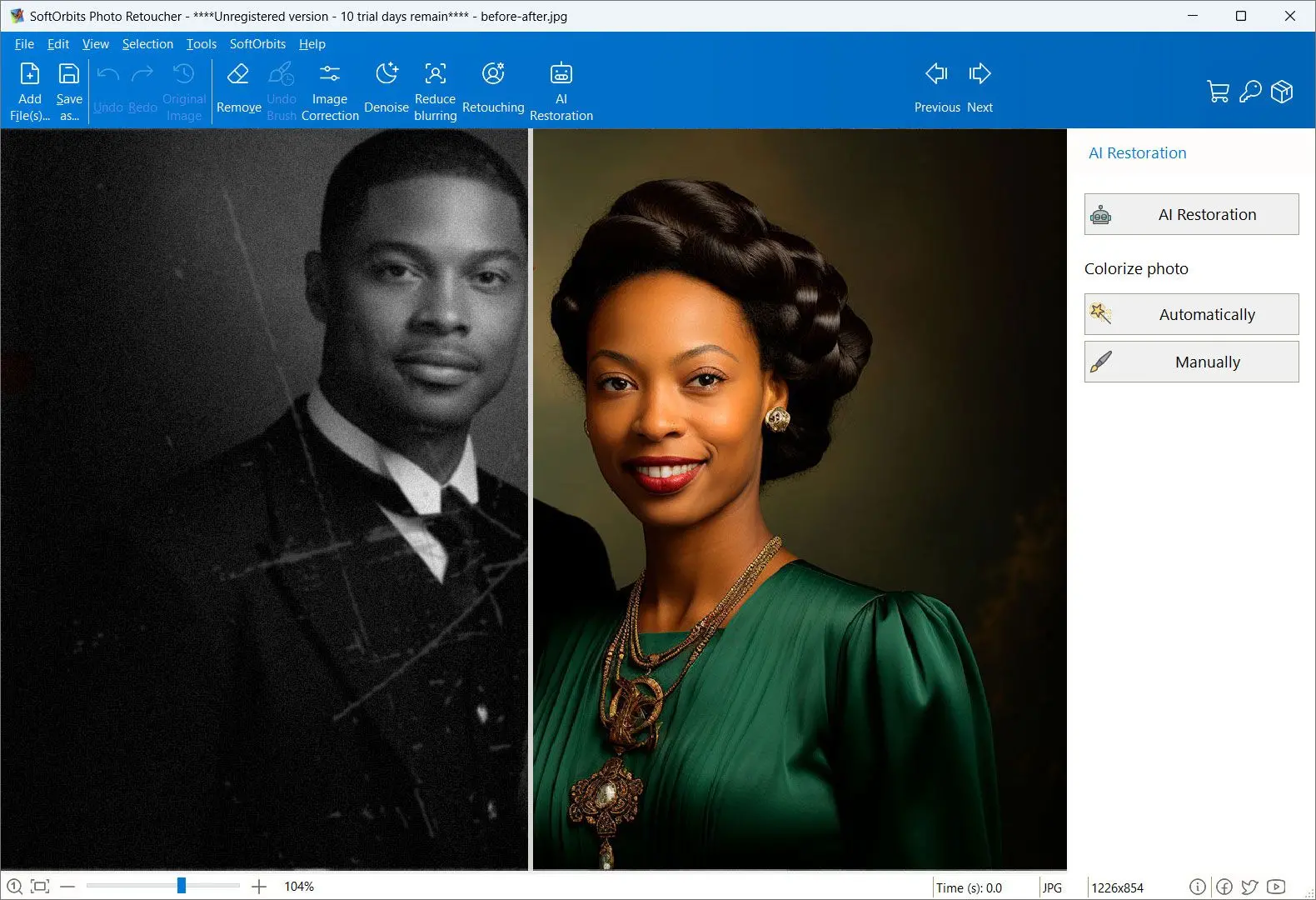
Which tools work fully offline and keep your photos private?
If privacy matters, choose a desktop app that processes locally. SoftOrbits Photo Retoucher runs offline. So do Topaz and PhotoGlory, AKVIS, and Adobe Photoshop. The web and mobile tools (MyHeritage, Remini, and the online services) upload your photos to a server, and some keep them for a while.
Offline versus cloud is the cleanest dividing line in the category. Of the 8 tools here, the 5 desktop apps do the work on your own machine, so a grandmother's portrait never leaves the house. Web and mobile services need to upload it. That is not a hypothetical concern. One widely shared complaint on r/windowsapps was that "every AI photo app turns into a subscription trap or forces you to upload your family photos to some server you know nothing about." Remini's own policy allows storing uploaded images for up to 12 months. If the photos are of relatives, especially of children, local processing on a tool like our Photo Retoucher sidesteps the question entirely. For non-personal images where you want zero install, a web tool is a reasonable trade.
Subscription or one-time: what photo restoration software really costs
Restoring old photos is usually a one-off project, which fits a one-time license better than a monthly bill. SoftOrbits Photo Retoucher, PhotoGlory, and AKVIS can be owned outright; Topaz, Adobe, and Remini are subscription-based.
Pricing models split the field more than features do. A box of 50 to 200 inherited scans is a weekend project, not an ongoing need, so paying every month feels wrong, and users say so. On r/TopazLabs, occasional users described treating the subscription as a single 1-month buy just to finish one project and cancel, because the perpetual license is gone. Others tally the stacking cost of running Adobe plus Topaz plus another tool at once. We are not going to quote exact prices, because they shift, and our own price lives on the product page rather than here. What is stable is the model. Want to pay once and own it? The desktop one-time tools are the honest fit. If you already pay for Creative Cloud, or you need top-tier AI every month, a subscription can make sense.
Will AI restoration make your relatives look like different people?
AI restoration can, if you let auto-only AI run unchecked. The fix is a tool with manual control. Let AI do the first pass, then correct over-smoothed faces by hand so the person still looks like themselves.
Looking like a stranger is the deepest fear in old-photo restoration, and it is well founded. A much-quoted thread on r/photoshop describes trying to restore a grandmother's fire-damaged photo, where "every single company using AI makes them look like a completely different person." On r/ChatGPT, a top comment points out that generative tools do not edit your image at all. They "make their own new image" that merely resembles the original. The technical name for the most common failure is over-smoothing. As one breakdown of AI headshot artifacts puts it, the algorithms blur high-frequency detail and wipe out natural pore texture, leaving the plastic skin you see on so many AI portraits. The practical defense is control. Any AI photo restoration software will do the heavy lifting on dust, scratches, and noise, but keep the manual brushes ready to dial back a face that has gone too smooth. That is exactly why we ranked auto-plus-manual tools above the auto-only services. For sharpening a soft scan without wrecking the face, a focused image sharpening pass also helps.
Best free and online photo restoration options
Free web tools (Fotor, LetsEnhance, MyHeritage free tier) handle light fading and quick enhances, but most watermark output, upload to the cloud, and stall on heavy damage. They are a fine first try, not a finisher for scratched prints.
Want to spend nothing? Start with the web. Fotor offers a free tier, LetsEnhance has a dedicated old-photo model with credit-based pricing, and MyHeritage's free plan will enhance and colorize, with a watermark stamped across the output. GIMP is the free, offline desktop option, but its restoration is fully manual and the learning curve is real. The honest limits of the free route stay consistent. You get watermarks, weaker results on severely torn or stained originals, and a hard ceiling once damage gets heavy. They work well for a lightly faded snapshot. For a scratched, multi-problem print, a one-time desktop tool will save you re-doing the job twice over. If the damage is mostly dust and surface scratches, our deeper guide to dust and scratch removal software walks through that specific fix.
How to choose the right photo restoration software for your photos
Match the tool to the job. Use all-in-one offline for mixed damage on Windows, Topaz for pure image quality, a web tool for a quick free enhance, and a mobile app only for face crops.
Work backward from what you have. If you need photo restoration software for Windows and you have a stack of old family prints with mixed damage to fix privately, an all-in-one offline tool like Photo Retoucher covers the most ground with the least app-switching. Photos that are technically fine but noisy, or scanned below 300 DPI, suit Topaz, which delivers the cleanest detail. Photoshop users who want total manual control should just stay in Photoshop. Want to try one faded photo for free? A web service is the fastest start, as long as you accept the watermark and the upload. And a blurry phone portrait of a face is a job for a mobile app, nothing more. Two questions decide most of it. Do these photos need to stay off the cloud. And is this a one-time project, or an ongoing need.
Photo Retoucher
Sources