How to batch convert hundreds of CR3 files at once
To batch convert CR3 to JPG, load a whole folder instead of single files, set JPG once, and run the job in one pass. A desktop converter processes the entire shoot using all CPU cores, so 500 files take one queue, not 500 clicks.
Browser converters are the part that falls down here. Most take one file at a time on the free tier, and a full card of 24-megapixel CRAW files is a lot of uploading before you even start. They were built for a quick one-off, not a 600-shot wedding where every CR3 has to be a client-ready JPG by Monday.
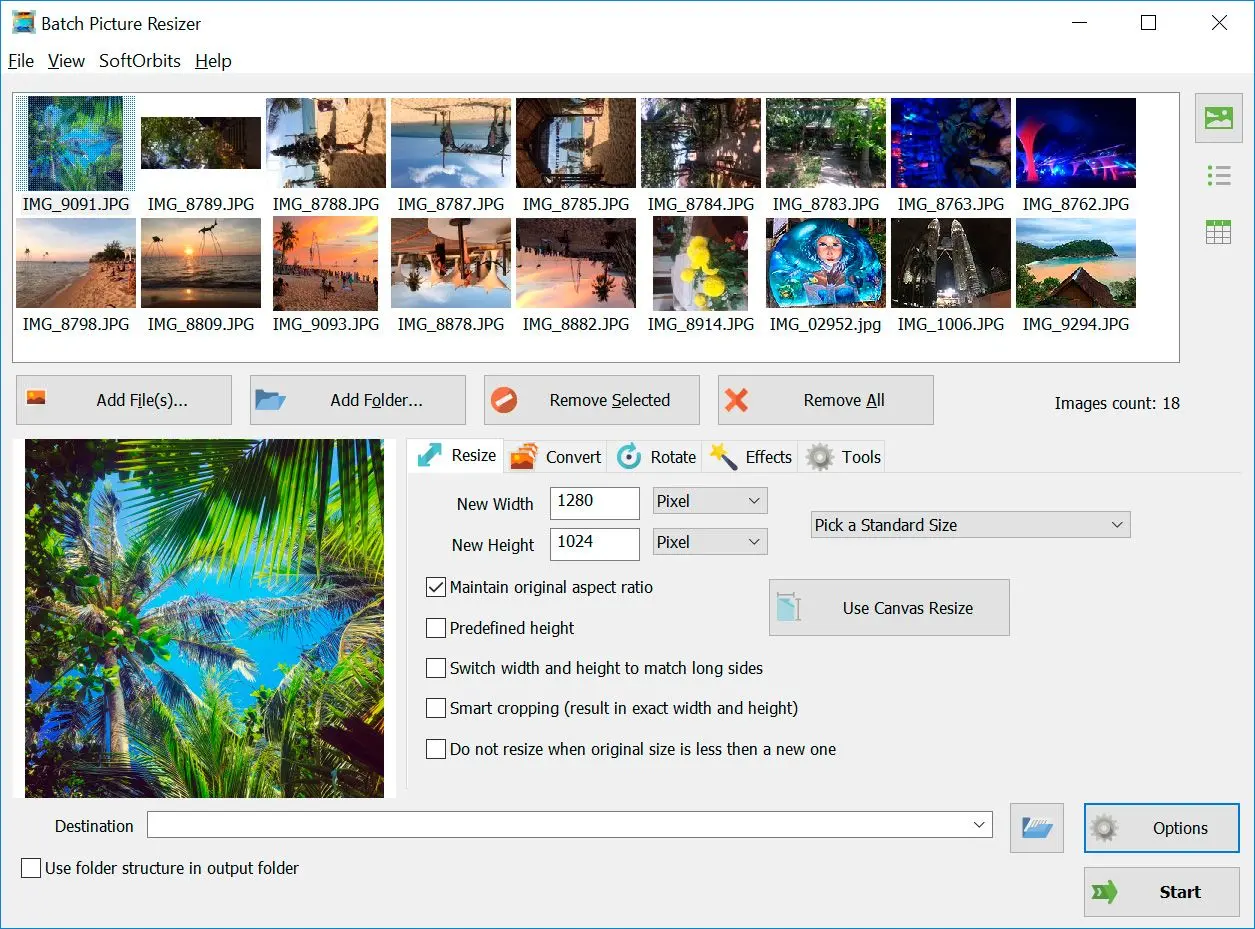
A desktop batch tool processes the whole queue in one go. Point Batch Picture Resizer at the folder, set JPG, and it runs the whole shoot at once, with no per-file dialog and no waiting behind an upload. It is a full RAW to JPG converter software, not a Canon-only tool, so Nikon NEF and Sony ARW files go through the same batch. You can also resize during the same pass, setting a pixel size or a target file size in KB, which saves a second run when the JPGs are headed for a web gallery.
What is a CR3 file, and which Canon cameras use it?
CR3 is Canon's RAW image format introduced with the DIGIC 8 processor. It stores unprocessed sensor data and uses an ISO Base Media File Format container with Canon's "crx" codec, which is why older software that only knew CR2 cannot read it.
CR3 arrived on the EOS M50 in 2018 and is now standard on Canon mirrorless bodies like the EOS R5, R6, R8, and R50, plus many PowerShot models. Canon also offers a smaller "C-RAW" variant inside the same CR3 wrapper to cut file size, so a single shoot can mix full CR3 and C-RAW files. If you just moved from a CR2-era DSLR to an EOS R body, that container swap is exactly why your old converter suddenly rejects the files: the photos look the same, but the format underneath changed.
That container change, documented on the Wikipedia raw image format page, is why any program not updated for the crx codec reports the file as unsupported or damaged. The fix is either an updated app or a converter that already speaks CR3.
CR3 vs JPG: which should you keep?
Keep CR3 when you still plan to edit, because it holds far more color and dynamic range for recovery. Convert to JPG when you need to share or send files that open anywhere. Many photographers archive the CR3 and hand out JPGs.
A CR3 file carries 14-bit sensor data with room to push exposure and white balance later. A JPG is 8-bit and lossy: the converter bakes in your settings and discards data to shrink the file. That trade is fine for delivery and terrible for heavy editing. The practical workflow is to keep the RAW originals and batch out JPGs for everything that leaves your drive.
| Feature | CR3 | JPG |
|---|---|---|
| Data | 14-bit RAW sensor data | 8-bit, lossy compression |
| File size | Larger (20-90 MB) | Smaller (2-8 MB) |
| Editing room | Wide; recover highlights and redo white balance | Narrow; settings are baked in |
| Opens anywhere | Needs RAW support / a converter | Yes, on almost any device |
| Best for | Editing and archiving | Sharing, print, email |
Does converting CR3 to JPG keep your EXIF data?
Yes. A good CR3 to JPG converter copies the EXIF metadata into the JPG by default - camera model, lens, exposure settings, the capture date, GPS location if it was recorded. You usually get an option to strip metadata on purpose, for example before posting photos publicly.
EXIF survives the conversion unless you turn it off. Batch Picture Resizer carries metadata over and also reads the orientation flag, so portrait shots come out upright instead of sideways. If you are sharing images and would rather not publish your location, strip GPS or all metadata during export. That is a deliberate choice, not a side effect. Same goes for the CR2 generation if you are still shooting an older body; the CR2 to JPG converter path handles those the same way.
Why does the converted JPG look flat or washed out?
A flat JPG usually means the RAW was converted without the camera's color profile or white balance. RAW looks neutral by design; the in-camera preview applies a picture style. Set white balance and a bit of contrast before export, or use a converter that applies sensible defaults.
The camera shows you a processed JPG preview on its screen, even when it saved a RAW file. So the CR3 usually looks more contrasty on the back of the camera than the "real" RAW data does. When a converter dumps the raw values straight to JPG with no adjustments, the result can look dull or slightly off compared to what you remember. Two fixes help here. Set white balance and basic contrast during conversion, and avoid converters that ignore the embedded profile. For a whole batch, lock in one white balance and apply it across the shoot so the JPGs stay consistent.
Can I convert CR3 to JPG without uploading my photos?
Yes. A desktop converter runs entirely on your PC, so no file is uploaded. This matters for client and commercial RAW files that should not sit on a third-party server. Offline conversion also dodges file-size caps that online tools put on large CR3 files.
Online converters send your photos to their server, convert them, then let you download the result. For a single snapshot that is fine. For wedding and commercial work, uploading client RAW files to a random website is a non-starter, and the privacy notes on tools like FreeConvert and Framebird exist precisely because people worry about it. A local converter keeps the files on your machine from start to finish. As a bonus, it ignores the 50 MB per-file limits that trip up high-resolution CR3 files from cameras like the R5.
Why won't Windows show thumbnails for CR3 files?
Windows does not preview CR3 out of the box. Install Microsoft's free Raw Image Extension from the Store, and most CR3 thumbnails appear in File Explorer. If they still fail after a Windows update, converting to JPG gives you previews that show up without any extension.
By default, File Explorer shows a generic icon for CR3 instead of the photo, which makes culling a shoot painful. Microsoft's Raw Image Extension, a free add-on from the Store, brings previews for many camera RAW formats, including CR3. It usually works, but readers report it breaking after some Windows 11 feature updates, and not every brand-new camera model gets covered on day one. If thumbnails are the real problem, batch-converting to JPG sidesteps the extension entirely, since a JPG preview shows up on its own. It is a slightly circular fix, but a practical one.
Convert CR3 with Adobe Lightroom or Photoshop
Lightroom and Photoshop can convert CR3, but only if Adobe Camera Raw is current. Each new Canon body needs a specific ACR update, so an older perpetual version like Photoshop CS6 or Elements 2022 often cannot open CR3 from a new camera. Update ACR or use a standalone converter.
Adobe support for CR3 is tied to the Camera Raw version, and Adobe adds each new camera model in a specific update, as the Adobe community threads show repeatedly. Subscription Lightroom Classic and current Photoshop stay updated, so they handle CR3 fine. The trouble lands on people running a perpetual license. Photoshop CS6 or Elements from a couple of years ago will reject a CR3 from a new R-series body, because the matching ACR profile did not ship for that version. If updating is not an option, a dedicated converter sidesteps the whole version-lock problem and batches the files at the same time.
Why Batch Picture Resizer fits CR3 to JPG conversion
Batch Picture Resizer is a CR3 to JPG converter software that converts and resizes many photos at once on Windows 10 and 11. It reads Canon CR3, CR2, and CRW alongside Nikon and Sony RAW formats, exports to JPG (plus TIFF and PNG), and can resize the whole batch in the same pass.
We built Batch Picture Resizer around one job: turning a folder of CR3 files into JPGs with less friction than a full editor. The same engine handles other makers, like the Nikon path in our NEF to JPG converter guide.
Batch converts a whole folder of CR3 in one pass, on all CPU cores
Reads Canon CR3 and CR2 plus Nikon NEF, Sony ARW, and HEIC
Keeps EXIF and auto-rotates by the orientation flag
Runs offline; resize by a pixel size or a target KB in the same step
Right-click conversion from File Explorer and a command line for scripts
Windows only, not macOS
Not a full RAW editor for deep retouching
| Reads (input) | Writes (output) |
|---|---|
| Canon CR3, CR2, CRW | JPG / JPEG |
| Nikon NEF, Sony ARW, Olympus ORF | TIFF |
| HEIC, WebP, PSD, BMP, GIF | PNG |
When you need offline batch conversion rather than a heavy editor, use Batch Picture Resizer. It also covers neighbor formats, so the same install can convert HEIC to JPEG from a phone in the same queue.
Pitfalls when converting CR3 to JPG
Most CR3 conversion problems trace back to outdated software, online file-size limits, or skipped color settings. Knowing them ahead of time saves a re-run of the whole batch.
Readers on the Adobe community repeatedly hit "unsupported or damaged" because their Photoshop or Lightroom version predates their camera. Check that your app supports CR3 from your exact model, or convert with a tool that already does.
Digital Photo Professional ships free with the camera and gives accurate color, but on DPReview forum threads people describe it crawling on large CRAW batches. It is fine for a few hero shots, slow for hundreds.
Free converters cap file size (often 50 MB) and upload your photos to a server. A 60-90 MB CR3 from an R5 may not even fit, and client work should not be sitting on someone else's machine.
When File Explorer shows generic icons, install the Raw Image Extension or convert a small test set first, so you are not exporting files you cannot see.
Convert one file, check the color, then run the rest. Discovering a green cast after 500 JPGs means doing the batch twice.
Sources