Image Resizer for Windows 11 Download

  1. 1️⃣ Download and install a desktop image resizer that runs offline.
  2. 2️⃣ Add a folder of photos and set the new size in pixels, percent, or KB.
  3. 3️⃣ Click Start and let it batch every file at once.
Batch Picture Resizer Screenshot.

Windows 11 still has no real batch image resizer built in, so resizing a folder of photos one by one gets old fast. A dedicated image resizer for Windows 11 fixes that. Install Batch Picture Resizer, point it at a folder, and it resizes every photo at once, whether you work in pixels, in percent, or to a target file size in KB. Everything runs on your PC, so private photos never get uploaded. This guide covers the steps, the file-size trick most built-in tools miss, and where Paint, Photos, and PowerToys fall short.

What you will learn
Apply in 11 min Saves 2 hBeginner

Does Windows 11 have a built-in batch image resizer?

TL;DR

No. Windows 11 can resize a single image in Photos or Paint, but there is no native option to resize a whole folder at once. As one Microsoft forum user put it, "Windows does not come with a bulk image resizing feature. You have to resize the image one by one." A desktop resizer or a PowerToys add-on is the practical way to batch.

Photos and Paint both open one picture at a time. Fine for a single screenshot, painful for a wedding folder or a phone import that pulls in hundreds of files. Windows 11 also dropped the old "Send to > Mail Recipient" shortcut that used to offer a quick resize in Windows 10, a change people still complain about across Windows forums. Microsoft's own answer is to install PowerToys, but that needs admin rights and does not cover every format. For real batch work, a standalone resizer that handles a whole folder in one pass is the simpler route, and it is why threads on the Microsoft Tech Community keep pointing newcomers to dedicated software.

How to batch resize images on Windows 11 with Batch Picture Resizer

Download and install Batch Picture Resizer

Grab the free trial for Windows 11 and 10 (64-bit) and run the installer. The download is about 15 MB and installs in under a minute.

Add your photos or a whole folder

Click Add Files or Add Folders, or drag photos straight in. Adding a folder loads every image inside it, which is the point of batch mode.

 Add images to the batch resizer.

Set the new size in pixels, percent, or KB

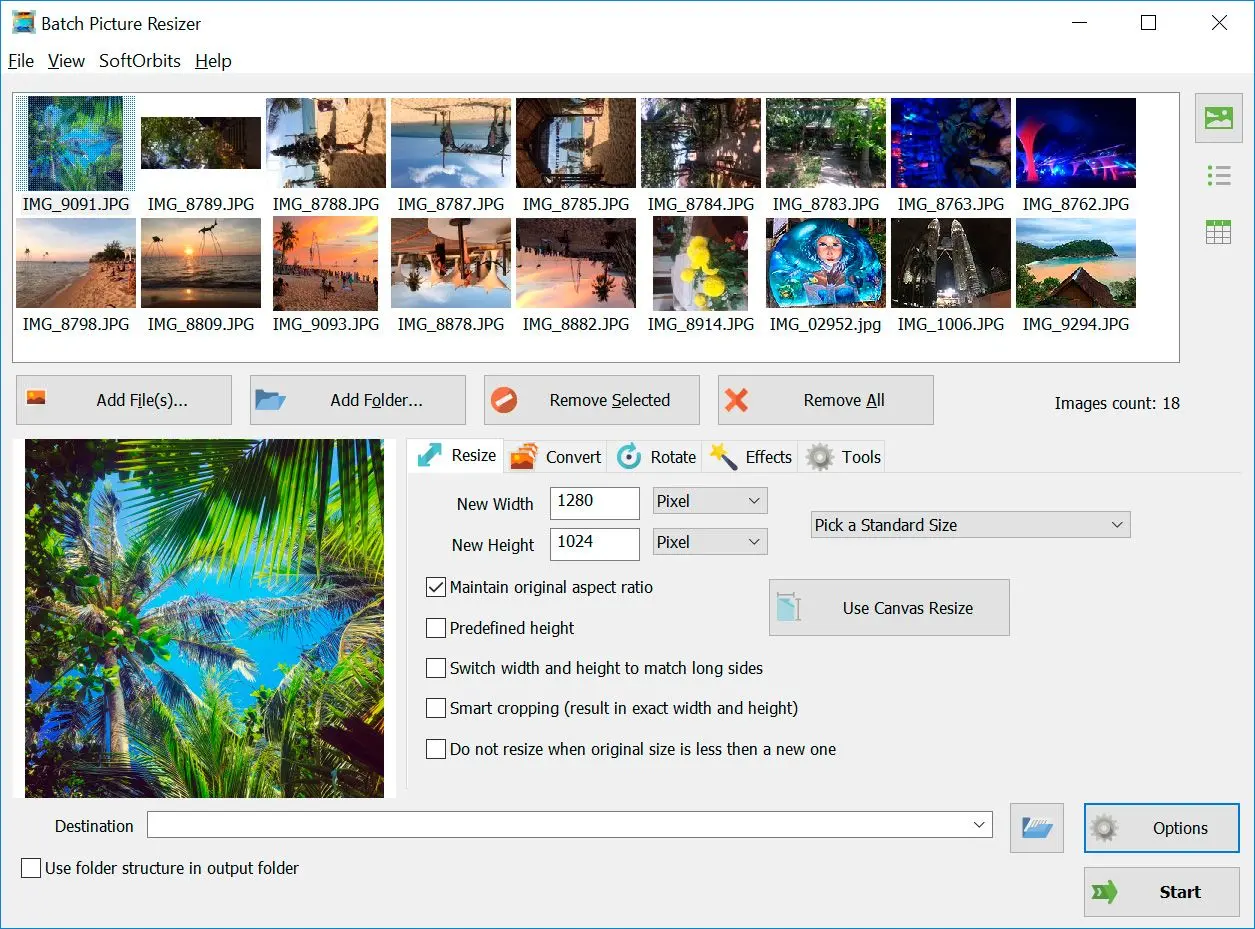
Type width and height in pixels, scale by percent, or switch to KB mode to target a file size. Keep aspect ratio on so portraits are not stretched.

 Set height and width for resizing.

Pick the output format and any extra options

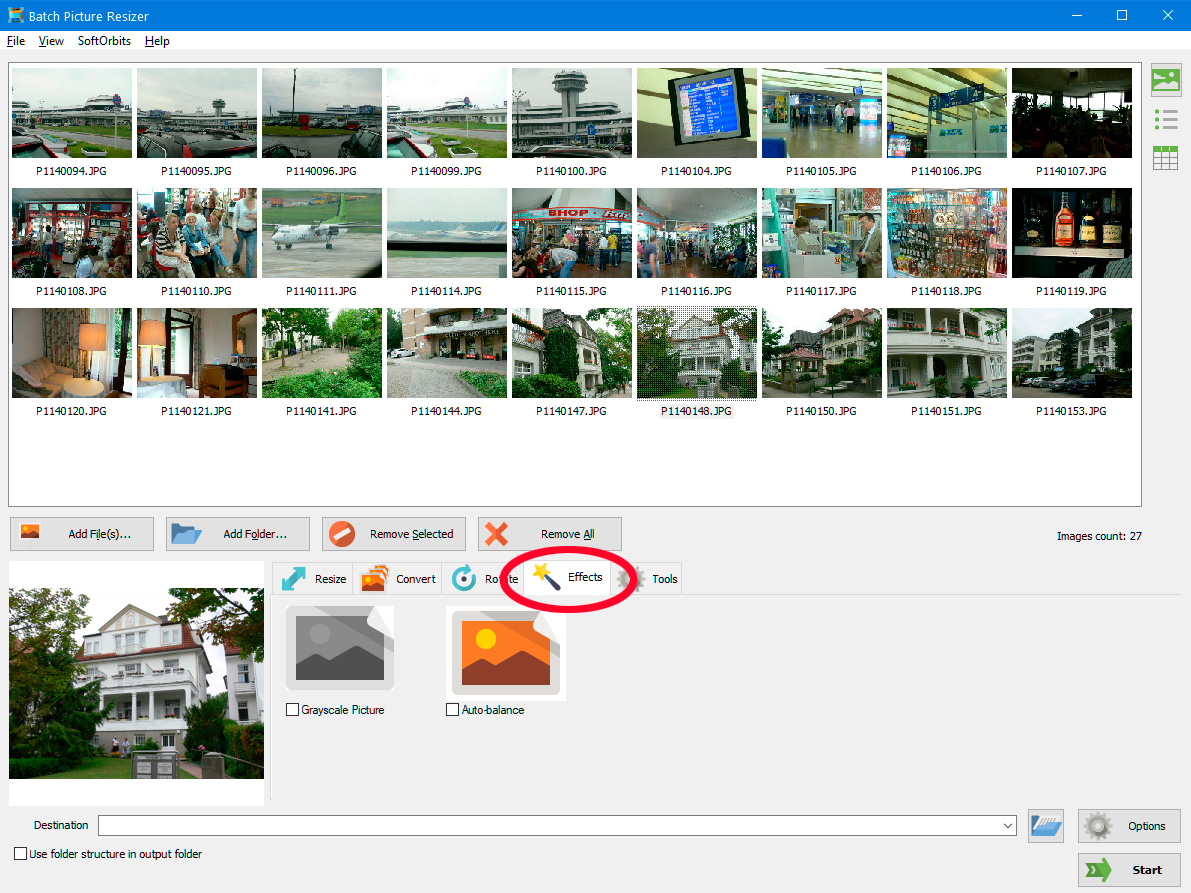
Choose your output format, such as JPEG or PNG, and turn on extras like smart crop, grayscale, or auto-rotate if you need them.

 Choose output format and effects.

Choose an output folder and click Start

Point the output to a separate folder so the originals stay untouched, then start the batch and check the results.

 Set the target size and start resizing.

Batch Picture Resizer Batch Picture Resizer

How to resize an image to a target file size in KB or MB

TL;DR

To hit an exact file size, use a resizer that adjusts JPEG quality to a target weight, not just pixel dimensions. In Batch Picture Resizer, switch the size unit to KB and pick a preset (20, 50, 100, 200, 500 KB, or 1, 2, 5 MB) or type your own. The tool tests compression in memory and writes one final JPEG at or just under your limit.

Hitting a precise weight is the gap most built-in tools leave open. Email clients, government portals, and job-application forms often cap uploads at "under 2 MB" or "max 500 KB," and Paint or Photos can only change pixels, which leaves you guessing how small to go. Microsoft PowerToys has the same blind spot; its Image Resizer works in pixels and percentages with no file-size target at all.

Pick a preset or type an exact KB value:

Open the width/height fields, pick KB as the size unit, and choose a preset or enter a number. The resizer lowers JPEG quality step by step to land close to your target, and only drops the dimensions if quality alone cannot get there. Because the trial runs every test in memory and saves once, you avoid the quality loss that comes from re-saving a JPEG over and over.

How to resize images without losing quality

TL;DR

Shrinking an image is safe when you keep aspect ratio on and hold JPEG quality at 80 or above. Two habits wreck quality. One is stretching a photo into the wrong proportions. The other is crushing the file size so hard that it turns pixelated. Control compression separately from dimensions, and resize down rather than scaling a small image up.

Making photos smaller is low risk because the pixels are already there. Enlarging is the opposite - new pixels get guessed, so a tiny image blown up looks soft and mushy. The other trap is chasing a file-size target by slashing pixel dimensions, which one user on the Microsoft Tech Community described as ending up with "pixelated, nasty-looking images." A resizer that adjusts JPEG quality independently from size lets you keep a photo sharp and still hit a small weight. Leave aspect ratio locked unless you genuinely want to crop, and resize from the original file rather than a copy you already compressed.

Can you resize images in Windows 11 Paint, Photos, or PowerToys?

TL;DR

Yes, but each built-in option has limits. Paint and Photos resize one image at a time with no batch and no file-size target. Microsoft PowerToys adds a right-click batch resize, but it needs a separate install, has no KB/MB target, and users report the context-menu entry breaking after updates. Dedicated software covers all three gaps in one pass.

Here is how the built-in routes compare with a dedicated tool, based on Microsoft's own docs and what users report:

ToolBatch a folderTarget file size (KB/MB)FormatsInstall needed
Paint / PhotosNoNoCommon onlyBuilt in
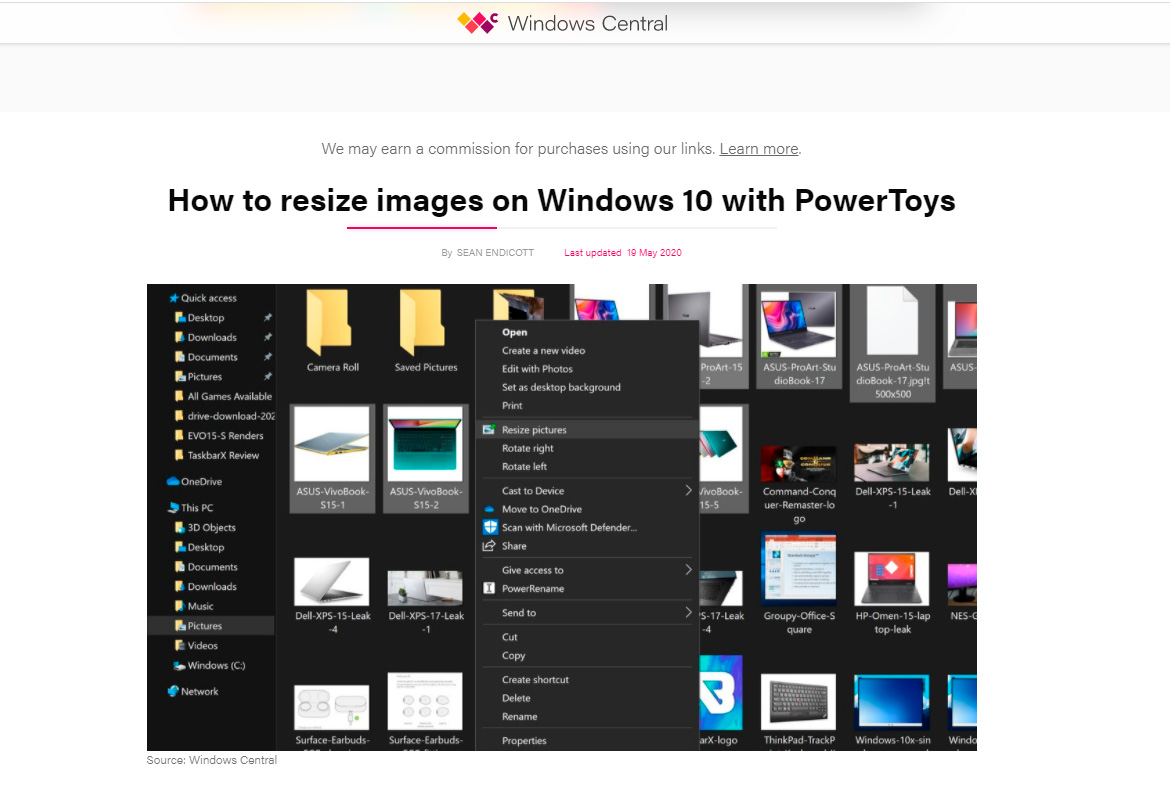
PowerToys Image ResizerYes (right-click)NoCommon, no RAW/HEICPowerToys install
Batch Picture ResizerYes (folder)Yes70+ incl RAW, HEIC, WebPStandalone installer
PowerToys is a good free option if you can install it and only need pixel resizing. Microsoft documents its settings and a command-line reference on Microsoft Learn. The catches show up in practice: there is no file-size target, and bug reports like this PowerToys issue describe the right-click resize silently failing to open. HowToGeek's roundup of Windows 11 methods walks through Photos, Paint, PowerToys, and a command-line route, none of which let you set a target file size.
 PowerToys Image Resizer compared with dedicated software.

Is it safe to use an online image resizer?

TL;DR

Online resizers are convenient but they require uploading your photos to someone else's server, which is a real concern for private or work images that carry EXIF GPS data. A desktop resizer keeps every file on your PC. For anything personal, confidential, or work-related, resize offline.

Browser tools are fine for a stock graphic you do not care about. The risk is everything else - family photos, ID scans, product shots under NDA. Once a file is uploaded, you cannot control who copies or keeps it - a point spelled out in this privacy FAQ on image resizers. Photos also carry EXIF metadata, including GPS coordinates, that you may not want on a third-party server. A desktop image resizer download sidesteps all of that. The photo is read, resized, and saved on the same machine, with nothing sent out.

What image formats can you resize (HEIC, RAW, WebP)?

TL;DR

A capable Windows image resizer should handle far more than JPG and PNG. Batch Picture Resizer reads 70+ formats. That covers iPhone HEIC, camera RAW (CR2, NEF, ARW), WebP, plus the older TIFF, GIF and BMP, and it can convert while it resizes. Windows 11 does not open HEIC natively, so a tool that reads it directly saves a conversion step.

Format support decides whether you can resize a folder in one go, or have to convert it first. iPhones save photos as HEIC, which Windows 11 will not open without an extension, and cameras shoot RAW files that most simple resizers ignore. Because Batch Picture Resizer reads these directly, you can resize and convert a folder of NEF (Nikon RAW) files into JPG in the same pass.

The same is true for the rest of a typical photo library. You can change WebP to PNG when you need transparency back, or pull Sony ARW shots into JPG for sharing. Note that saving a transparent PNG or WebP as JPEG fills transparency with white, so keep PNG when you need a clear background.

How to resize photos for Instagram, Facebook, and social media

TL;DR

Each platform expects its own pixel dimensions. An Instagram square runs about 1080x1080, a Facebook link image is near 1200x630, and a YouTube thumbnail wants 1280x720. Set the target size once, keep aspect ratio on, and batch the whole set so every post matches without manual cropping.

Resizing for social is mostly about matching platform's box without distortion. Crop or pad to the right aspect ratio first, then resize whole batch to the target dimensions. Doing it in one run keeps a campaign consistent, with every Instagram post at the same square and every blog header at the same width, instead of eyeballing each file. Presets help too, since you can save a common size once and reuse it for the next batch.

Why Batch Picture Resizer fits batch resizing on Windows

TL;DR

Batch Picture Resizer is a desktop tool built for resizing many photos at once on Windows 11, 10, and 7 (32/64-bit). It runs offline, handles 70+ formats, hits target file sizes in KB, and uses every CPU core so large folders finish quickly. It is a focused resizer and converter, not a full photo editor.

Pros:

Resizes a whole folder in one run, by pixel dimensions or a target size in KB

Reads 70+ formats including camera RAW, iPhone HEIC and WebP, and converts while resizing

Works offline with a small (~15 MB) installer and a free trial

Adds an Explorer right-click entry and a command-line mode for repeat jobs

Cons:

Not a layer-based editor for retouching or design work

The free trial watermarks or limits output until you buy a license

When you need folder-at-once resizing with real file-size control, use Batch Picture Resizer. It doubles as a converter too, so a folder of Canon CR2 RAW files can become JPG in the same run. For a quick one-off on a single image, Windows Photos is enough.
 Batch Picture Resizer options for resizing and converting.

Pitfalls when resizing images on Windows 11

TL;DR

Most resizing regret comes from a few avoidable habits. The common ones are overwriting originals, using Paint for a batch, crushing quality to hit a size, relying on a PowerToys context menu that breaks, and uploading private photos to an online tool. Knowing them up front saves a re-do.

✔️ Resizing over your originals.

Saving resized copies on top of the source files leaves you no way back if you went too small. Always send output to a separate folder and keep the originals untouched, a workflow people work through on the Microsoft Q&A board.

✔️ Using Paint for a whole batch.

Paint is a single-image editor; opening 200 photos by hand is not realistic. For more than two or three files, switch to a dedicated batch tool, a need that comes up again and again in Quora questions about bulk resizing.

✔️ Crushing pixels to hit a file size.

Slashing dimensions to force a smaller file produces pixelated output. Use a tool that adjusts compression separately, so quality holds while the weight drops.

✔️ Relying on a PowerToys context menu that vanishes.

On managed or updated PCs, the PowerToys resize entry can disappear or be blocked by IT policy, a pain users describe on the Microsoft answers thread. A standalone installer that does not depend on a shell extension is more predictable.

✔️ Uploading private photos to an online resizer.

Personal images carry EXIF GPS data and end up on a third-party server. Resize offline when the photos are sensitive.
Batch Picture Resizer Batch Picture Resizer
Download a batch image resizer for Windows 11, 10, and 7 (32/64-bit). Resize photos in bulk, hit a target file size in KB, and keep files offline.
Batch Picture Resizer Screenshot.
Batch Picture Resizer

Batch Picture Resizer

Languages
File Size

10.6 Mb

Version

14.0

Last updated on

06/05/26

$ 19.99

🖥️ System Requirements

  • Windows 11/10/8.1/8/7 (32/64 bit)
  • Intel i3, AMD Ryzen 5 or above
  • 4 GB of RAM or above
  • NVIDIA® GeForce® series 8 and 8M, Intel® HD Graphics 2000, Quadro FX 4800, Quadro FX 5600, AMD Radeon™ R600, Mobility Radeon™ HD 4330, Mobility FirePro™ series, Radeon™ R5 M230 or higher graphics card with up-to-date drivers
  • 1280 × 768 screen resolution, 32-bit color
  • 1 GB of free hard disk space or above


🙋Frequently Asked Questions

Download Batch Picture Resizer from the official SoftOrbits page. It installs on Windows 11, 10, and 7 (32/64-bit), runs offline, and offers a free trial before you buy a license.

It does ship one. Batch Picture Resizer has a 64-bit build for Windows 11 and 10, and still supports 32-bit systems, so it runs on both modern and older machines.

Yes. Batch Picture Resizer includes a command-line mode, which is useful for scripted or repeat resizing jobs. PowerToys also documents a CLI on Microsoft Learn if you prefer the built-in route.

Leave the keep-aspect-ratio option on and set only width or only height; the tool calculates the other side. Turn it off only when you deliberately want to crop or pad to a fixed box.

It can. The resizer reads HEIC directly, so you can resize and convert iPhone photos to JPG without first installing a separate HEIC extension that Windows 11 otherwise needs.

Yes. Resizing and conversion happen in one pass, so you can change formats as you resize - for example, convert JPEG to JPG or turn RAW files into JPG across a whole folder.

Resizing offline keeps photos on your PC, and a desktop tool can drop EXIF metadata, including GPS coordinates, on output - safer than uploading the original to an online resizer.

For private photos, usually yes - files stay on your PC instead of being uploaded. Download from the official vendor and keep the app updated.

Sources

Rate Image Resizer for Windows 11

  • Windows 7
  • Windows 8
  • Windows 10
  • Windows 11
Author: SoftOrbits (English)
Avg. rating: 4.5 from 829 votes

Risk-free download

14-day money-back guarantee
Full refund, no questions asked
progressive-webapps/apis/offline-first Created with Sketch.
100% offline
Your files never leave your PC
Safe & secure download
Directly from the official website
No sign-up required
No account or email to get started
Trusted since 2006
Desktop software for Windows