TL;DROnline resizers are convenient but they require uploading your photos to someone else's server, which is a real concern for private or work images that carry EXIF GPS data. A desktop resizer keeps every file on your PC. For anything personal, confidential, or work-related, resize offline.
Browser tools are fine for a stock graphic you do not care about. The risk is everything else - family photos, ID scans, product shots under NDA. Once a file is uploaded, you cannot control who copies or keeps it - a point spelled out in this privacy FAQ on image resizers. Photos also carry EXIF metadata, including GPS coordinates, that you may not want on a third-party server. A desktop image resizer download sidesteps all of that. The photo is read, resized, and saved on the same machine, with nothing sent out.
What image formats can you resize (HEIC, RAW, WebP)?
TL;DRA capable Windows image resizer should handle far more than JPG and PNG. Batch Picture Resizer reads 70+ formats. That covers iPhone HEIC, camera RAW (CR2, NEF, ARW), WebP, plus the older TIFF, GIF and BMP, and it can convert while it resizes. Windows 11 does not open HEIC natively, so a tool that reads it directly saves a conversion step.
Format support decides whether you can resize a folder in one go, or have to convert it first. iPhones save photos as HEIC, which Windows 11 will not open without an extension, and cameras shoot RAW files that most simple resizers ignore. Because Batch Picture Resizer reads these directly, you can resize and convert a folder of NEF (Nikon RAW) files into JPG in the same pass.
The same is true for the rest of a typical photo library. You can change WebP to PNG when you need transparency back, or pull Sony ARW shots into JPG for sharing. Note that saving a transparent PNG or WebP as JPEG fills transparency with white, so keep PNG when you need a clear background.
How to resize photos for Instagram, Facebook, and social media
TL;DREach platform expects its own pixel dimensions. An Instagram square runs about 1080x1080, a Facebook link image is near 1200x630, and a YouTube thumbnail wants 1280x720. Set the target size once, keep aspect ratio on, and batch the whole set so every post matches without manual cropping.
Resizing for social is mostly about matching platform's box without distortion. Crop or pad to the right aspect ratio first, then resize whole batch to the target dimensions. Doing it in one run keeps a campaign consistent, with every Instagram post at the same square and every blog header at the same width, instead of eyeballing each file. Presets help too, since you can save a common size once and reuse it for the next batch.
Why Batch Picture Resizer fits batch resizing on Windows
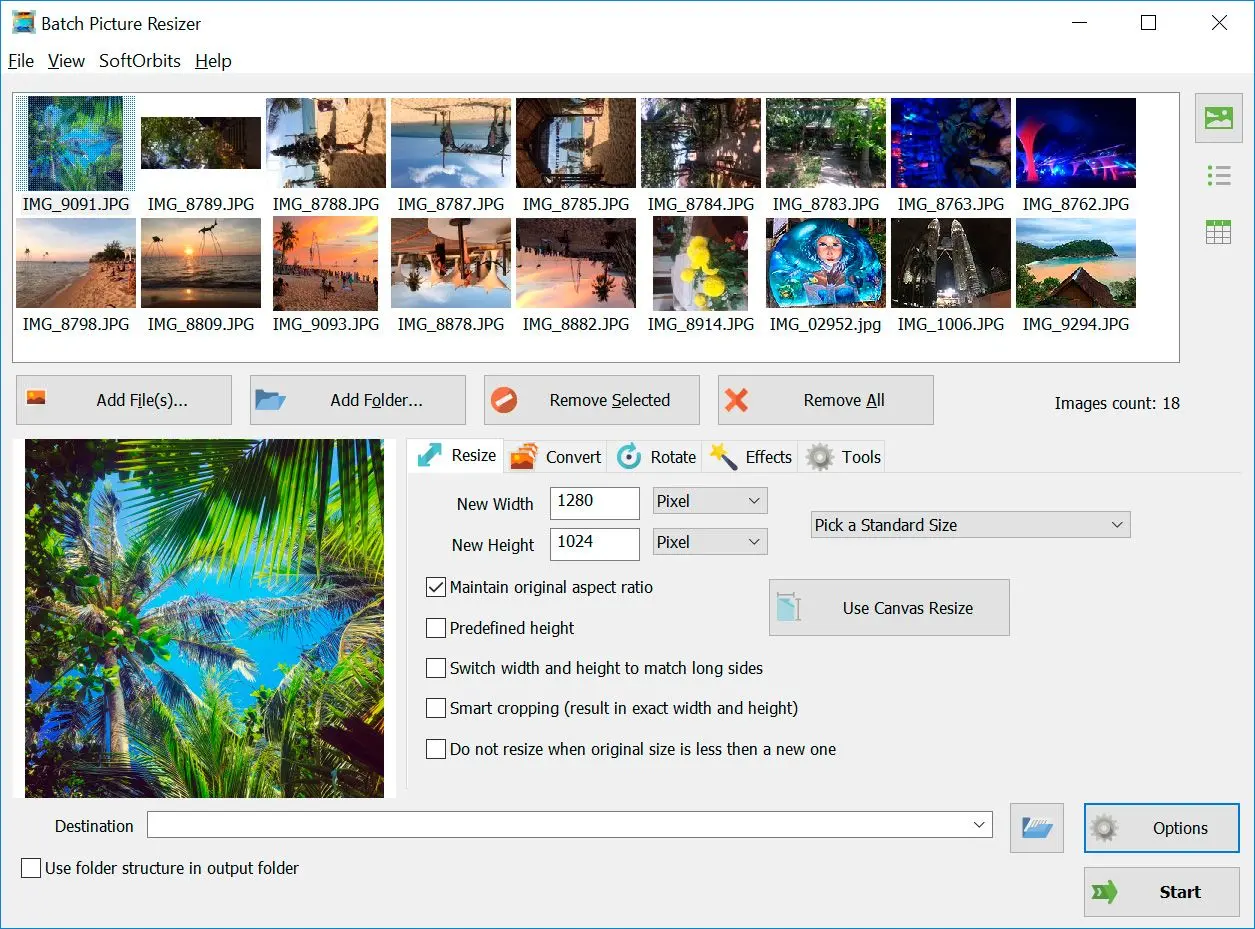
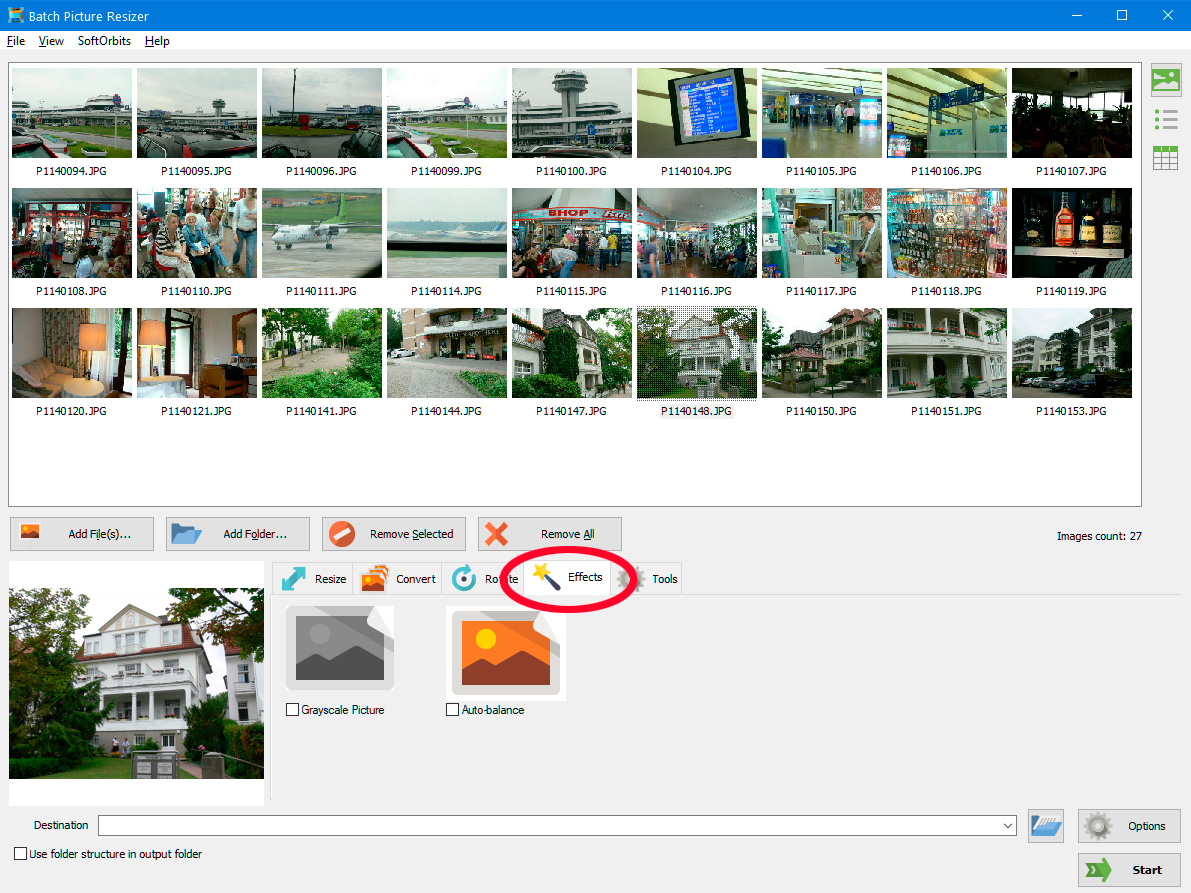
TL;DRBatch Picture Resizer is a desktop tool built for resizing many photos at once on Windows 11, 10, and 7 (32/64-bit). It runs offline, handles 70+ formats, hits target file sizes in KB, and uses every CPU core so large folders finish quickly. It is a focused resizer and converter, not a full photo editor.
Pros:
Resizes a whole folder in one run, by pixel dimensions or a target size in KB
Reads 70+ formats including camera RAW, iPhone HEIC and WebP, and converts while resizing
Works offline with a small (~15 MB) installer and a free trial
Adds an Explorer right-click entry and a command-line mode for repeat jobs
Cons:
Not a layer-based editor for retouching or design work
The free trial watermarks or limits output until you buy a license
When you need folder-at-once resizing with real file-size control, use
Batch Picture Resizer. It doubles as a converter too, so a folder of Canon
CR2 RAW files can become JPG in the same run. For a quick one-off on a single image, Windows Photos is enough.
Pitfalls when resizing images on Windows 11
TL;DRMost resizing regret comes from a few avoidable habits. The common ones are overwriting originals, using Paint for a batch, crushing quality to hit a size, relying on a PowerToys context menu that breaks, and uploading private photos to an online tool. Knowing them up front saves a re-do.
✔️ Resizing over your originals.
Saving resized copies on top of the source files leaves you no way back if you went too small. Always send output to a separate folder and keep the originals untouched, a workflow people work through on the Microsoft Q&A board.
✔️ Using Paint for a whole batch.
Paint is a single-image editor; opening 200 photos by hand is not realistic. For more than two or three files, switch to a dedicated batch tool, a need that comes up again and again in Quora questions about bulk resizing.
✔️ Crushing pixels to hit a file size.
Slashing dimensions to force a smaller file produces pixelated output. Use a tool that adjusts compression separately, so quality holds while the weight drops.
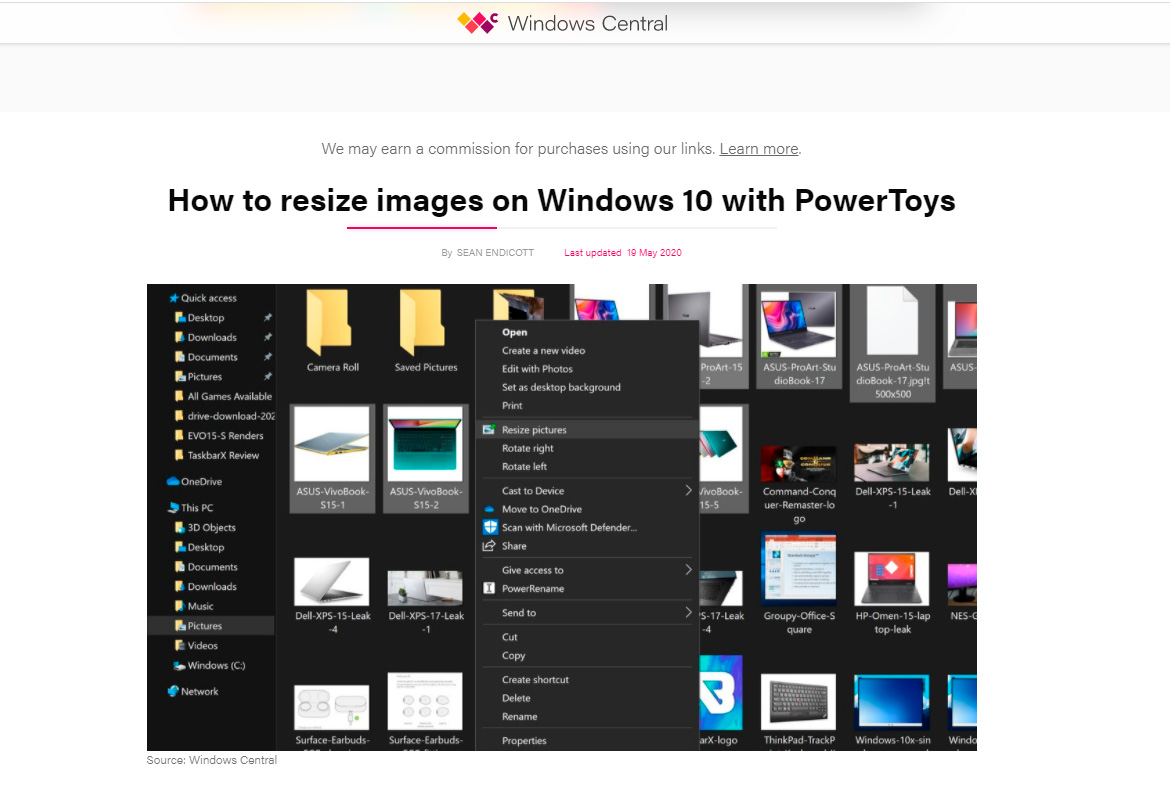
✔️ Relying on a PowerToys context menu that vanishes.
On managed or updated PCs, the PowerToys resize entry can disappear or be blocked by IT policy, a pain users describe on the Microsoft answers thread. A standalone installer that does not depend on a shell extension is more predictable.
✔️ Uploading private photos to an online resizer.
Personal images carry EXIF GPS data and end up on a third-party server. Resize offline when the photos are sensitive.
 Batch Picture Resizer